The Settings tab allows event organizers to manage registration controls, privacy settings, event visibility, event embedding, event URL, and lifecycle actions such as duplicating or deleting an event.
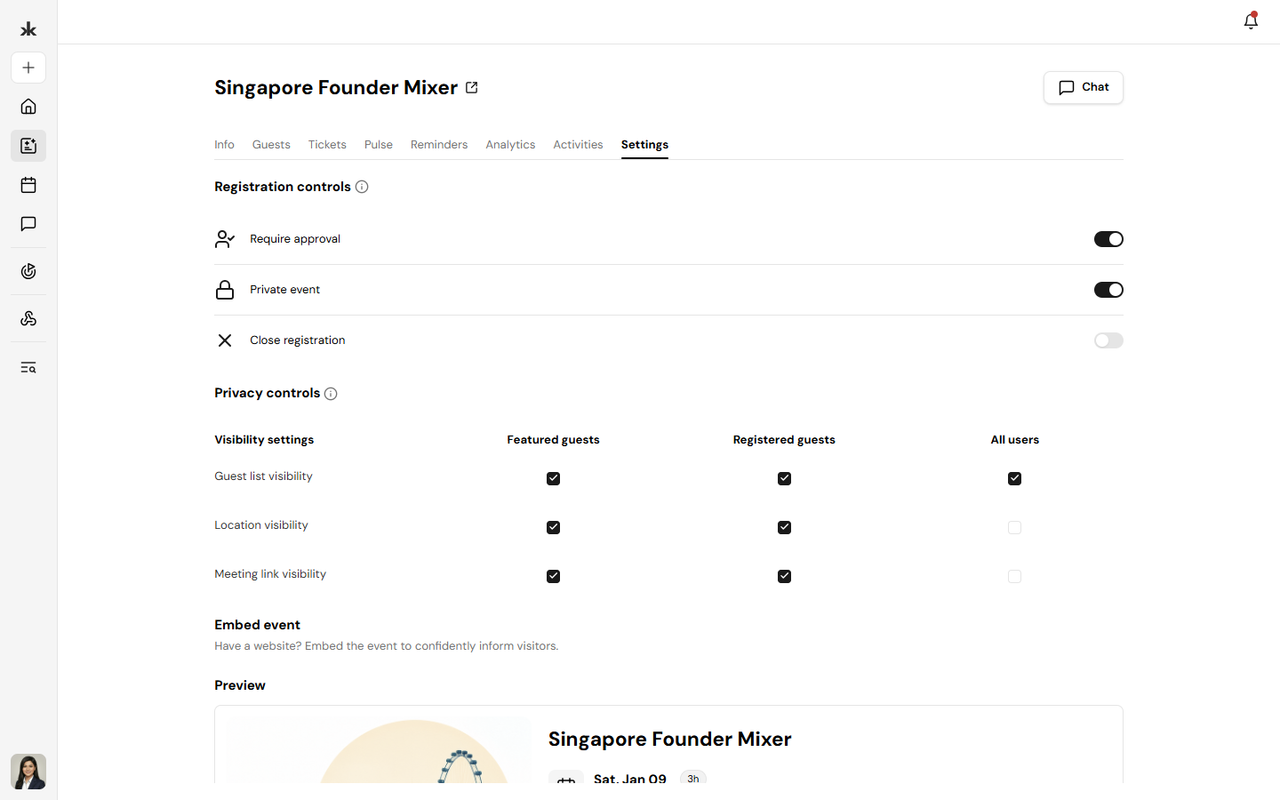
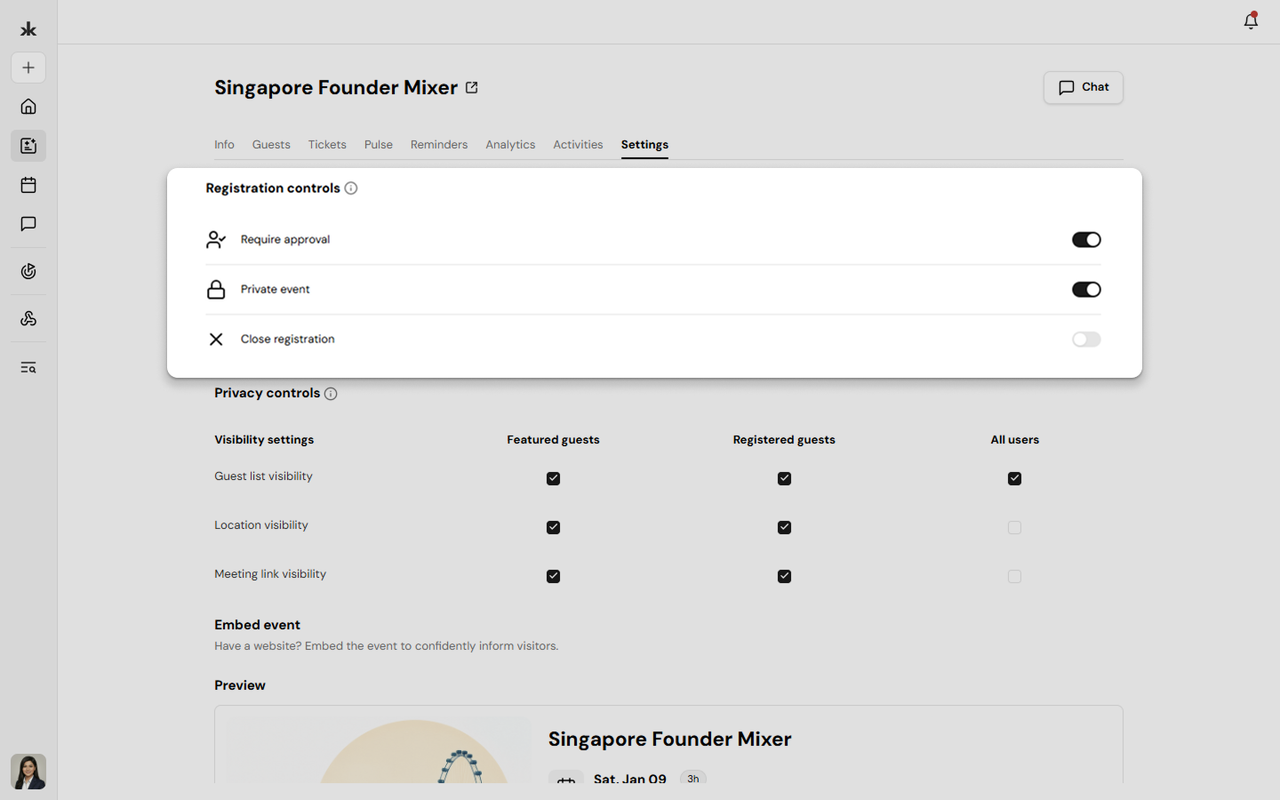
Registration controls determine how attendees can register for your event.
Available options include:
- Require approval - Enable this option to manually approve attendee registrations before they are confirmed.
- Private event - Restrict event access so only users with the event link or invitation can register.
- Close registration - Prevent any new registrations while keeping the event visible.
Changes take effect immediately after they are saved.
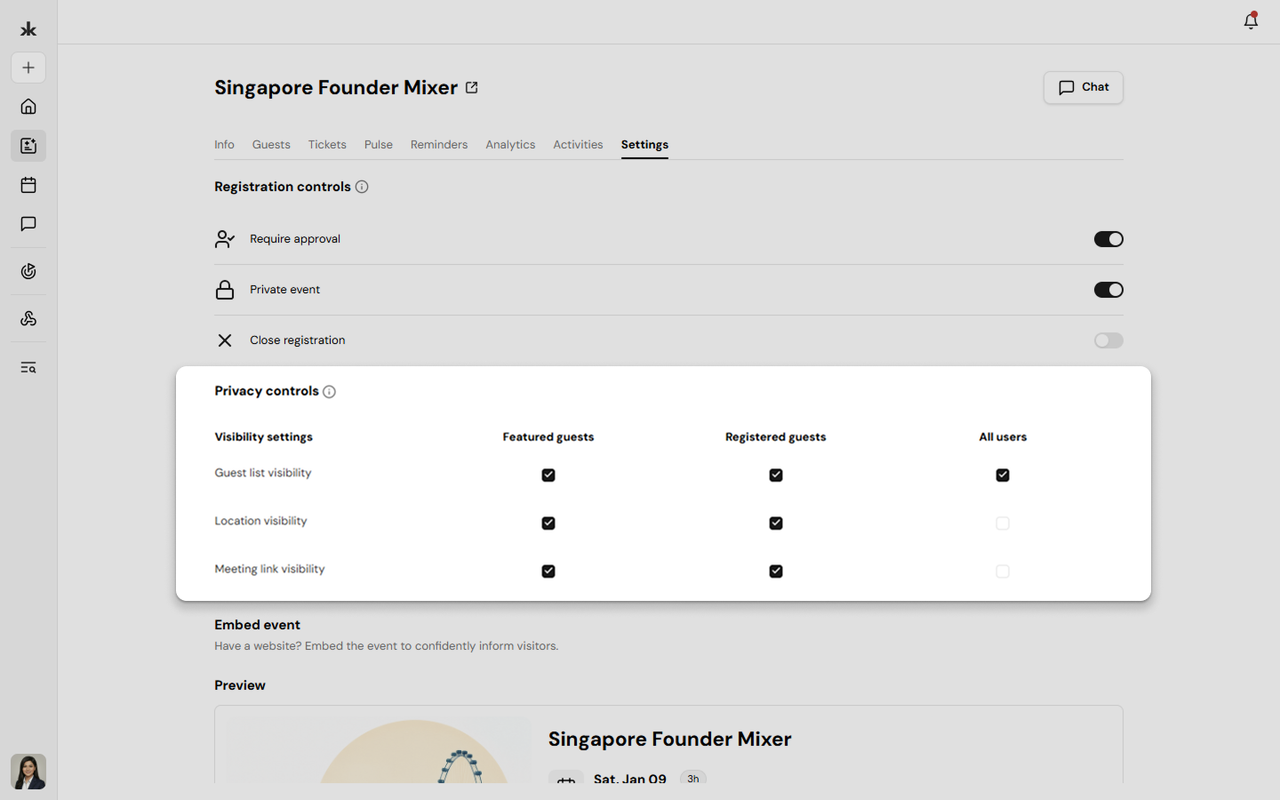
Privacy controls allow you to choose who can view specific event information. For each of the following items, visibility can be configured separately for:
- Featured Guests
- Registered Guests
- All Users
Available visibility settings include:
- Guest list visibility
- Location visibility
- Meeting link visibility
This allows organizers to share sensitive event information only with the intended audience.
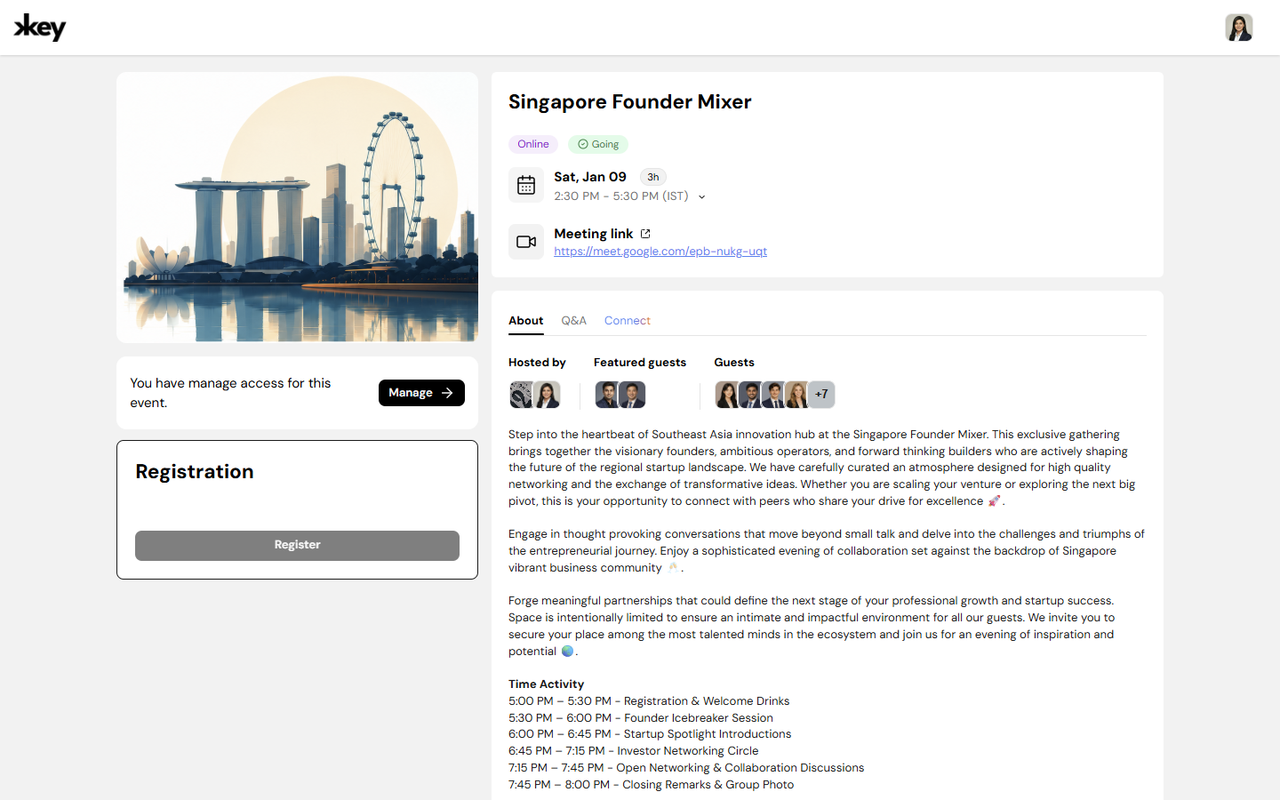
The Preview section displays how your event registration page appears to attendees.
From the preview, you can:
- Review how the event page will appear before sharing it.
- Open the full event page in a browser.
- Verify that event information is displayed correctly.
Embed Event on Your Website
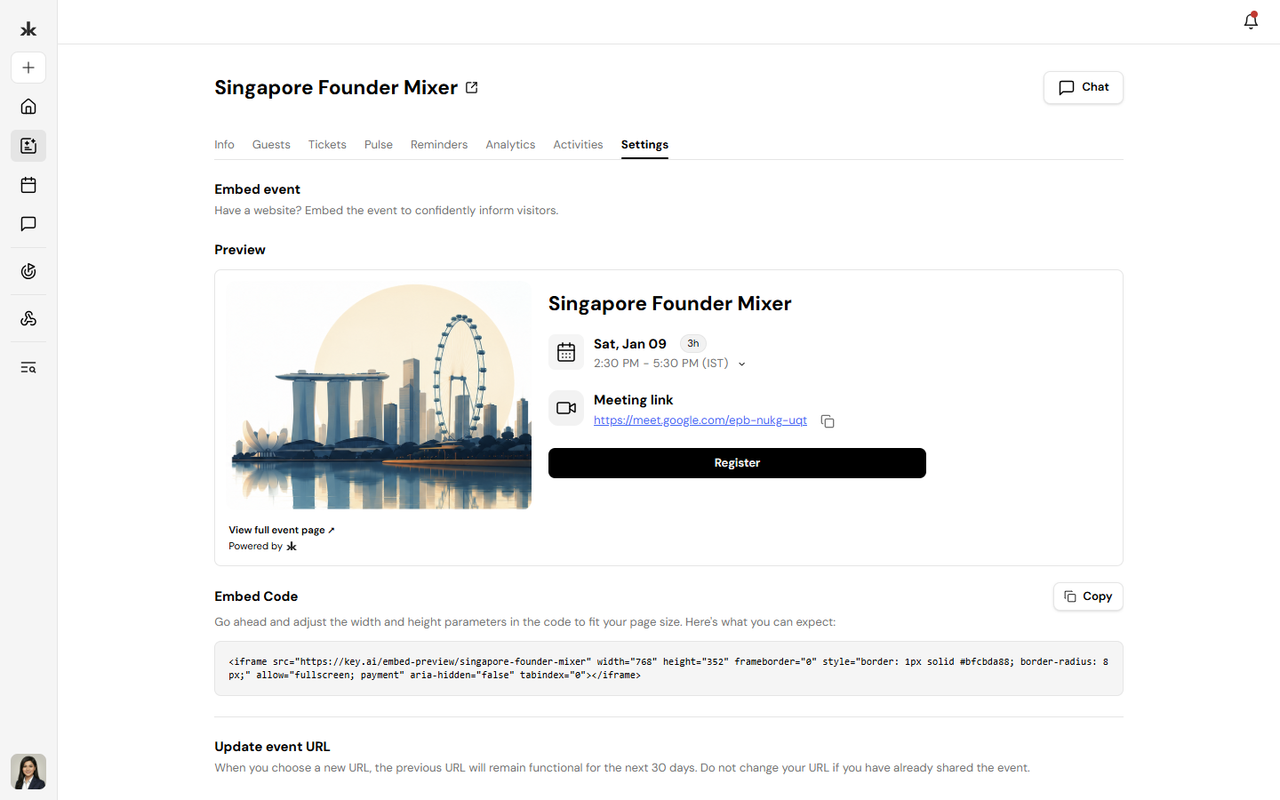
The Embed Code section allows you to embed your event registration page on an external website.
To embed your event:
- Scroll to the Embed Code section in the Event Settings tab.
- Click Copy to copy the generated embed code.
- Paste the code into your website where you want the event registration widget to appear.
You can modify the width and height values in the embed code to fit your website's layout.
Update the Event URL
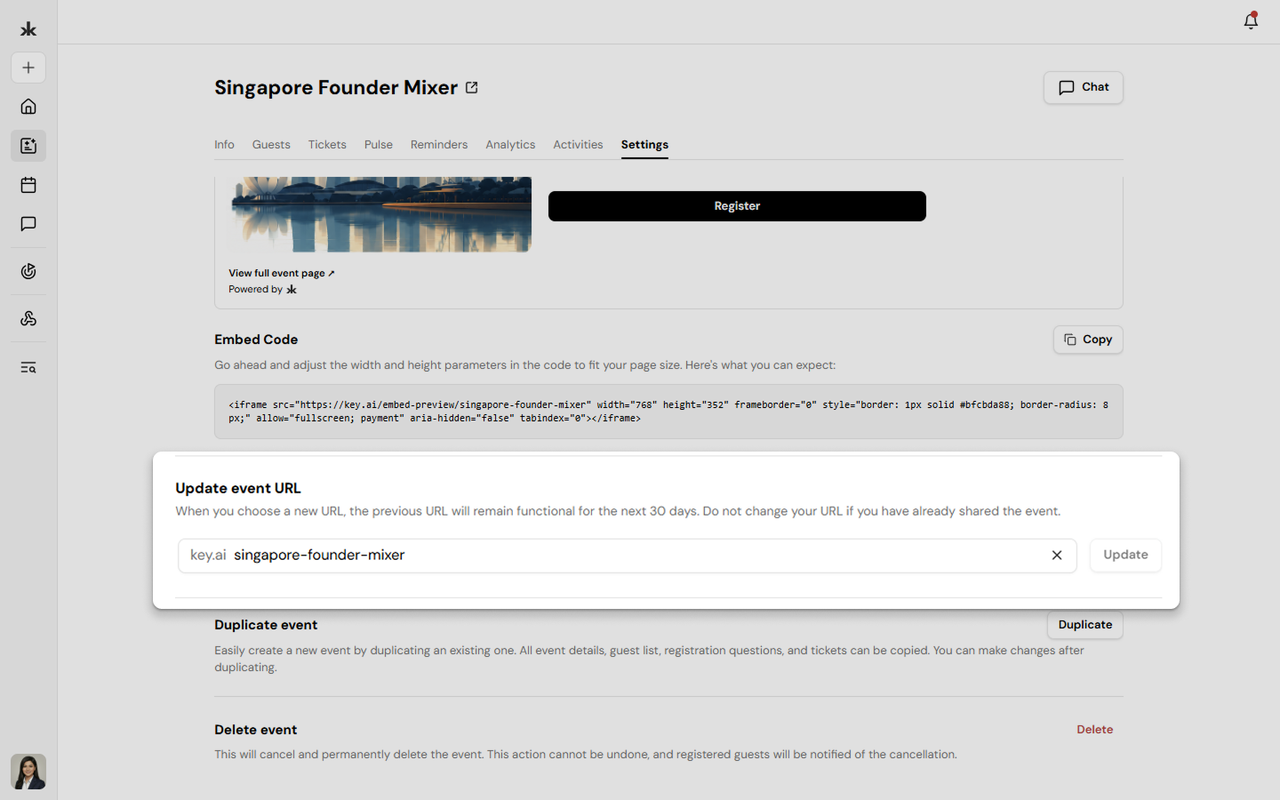
Each event has a unique URL that can be customized.
To update the event URL:
- Scroll to the Update Event URL section.
- Enter a new URL slug.
- Click Update.
Duplicate an Event
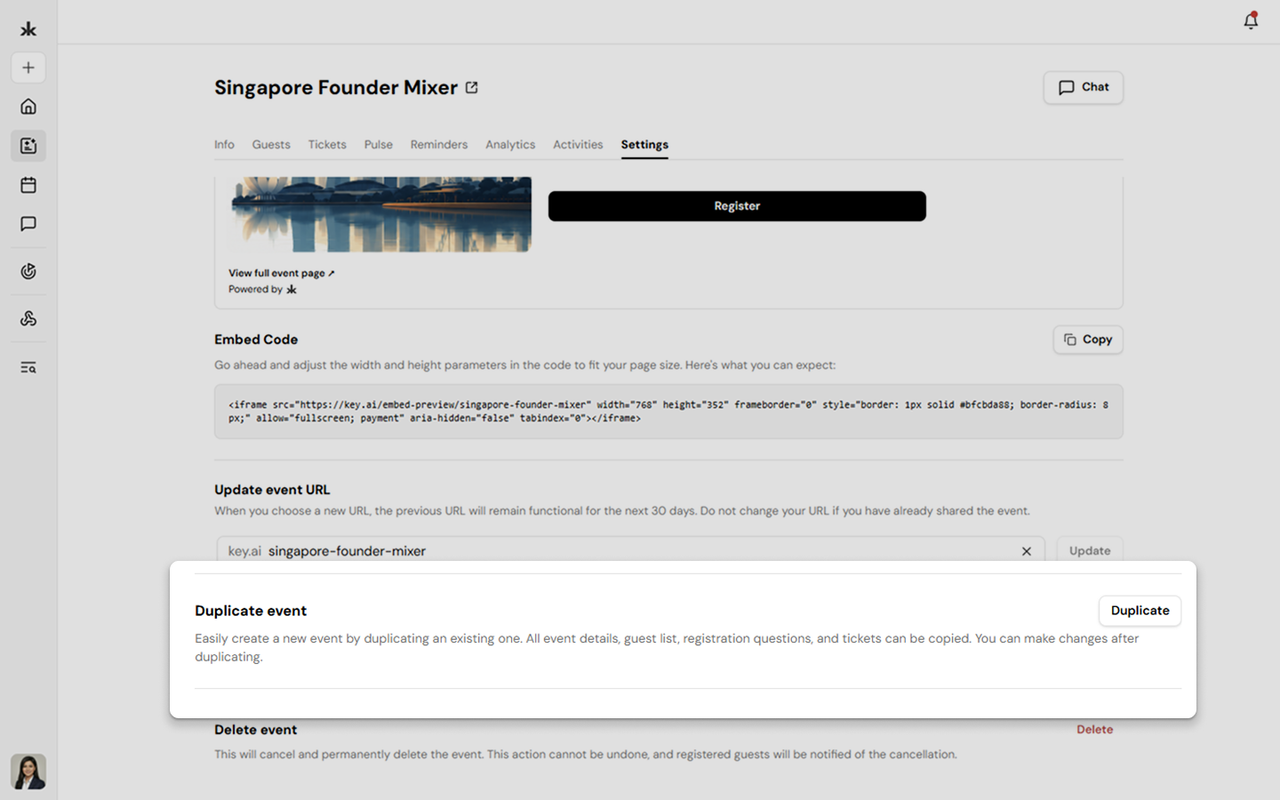
The Duplicate Event option allows you to quickly create a new event using an existing one as a template. When duplicating an event, the following information is copied:
- Event details
- Registration questions
- Tickets
After the event is duplicated, you can modify any of the copied information.
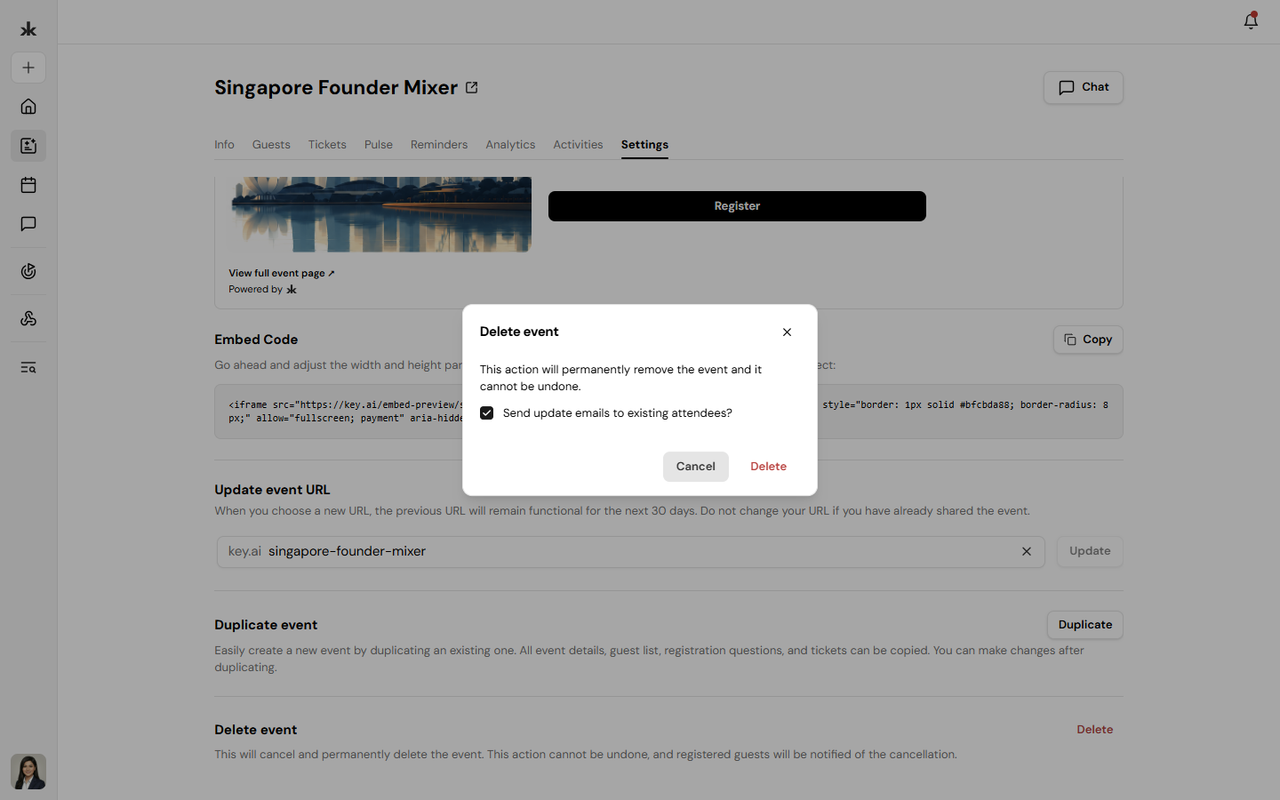
Delete an Event
Only the event creator can permanently delete an event.
To delete an event:
- Scroll to the Delete Event section.
- Click Delete.
- Confirm the action.