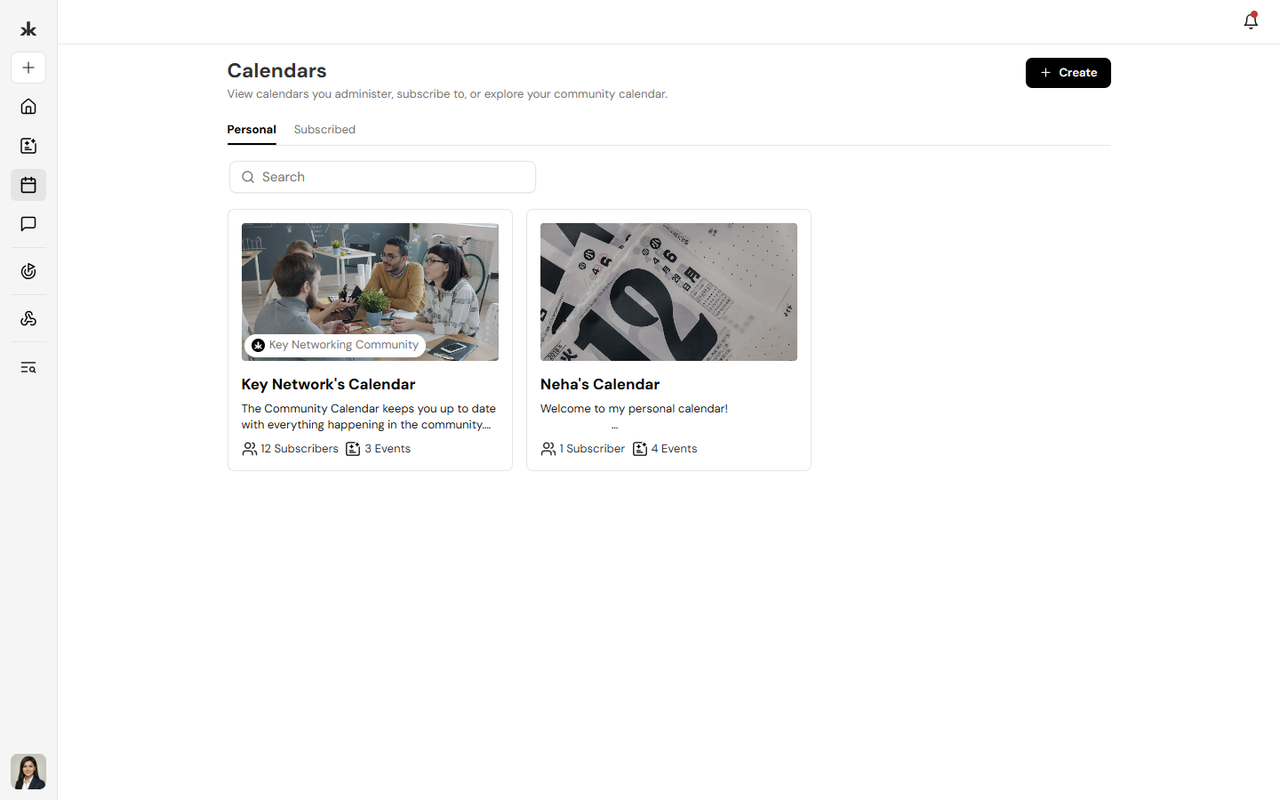
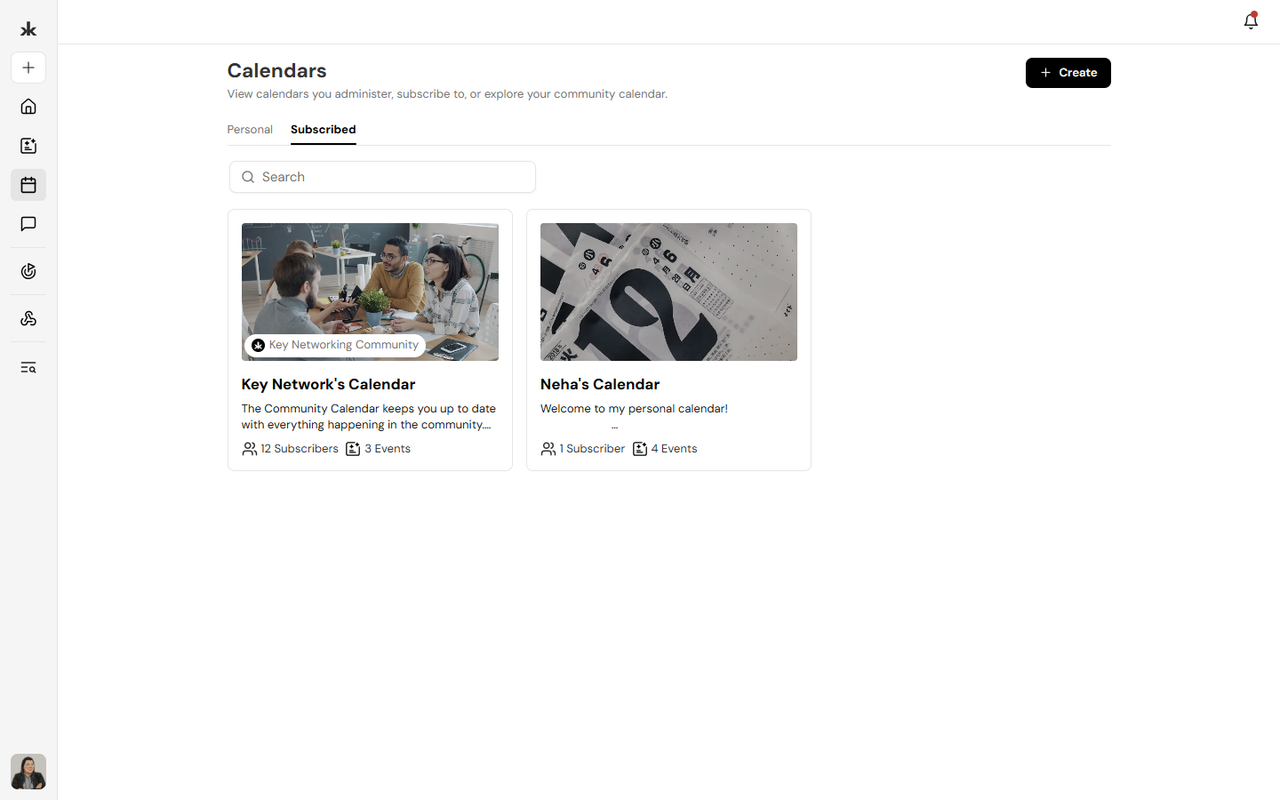
The Calendars section displays available calendars that you can explore.
You can:
- Browse available calendars.
- Search for a calendar.
- Open a calendar to view its events.
- Subscribe to a calendar, where available.
Each calendar may include its own name, description, cover image, and events.
Create a Calendar
Anyone on Key AI can create a calendar. No special permissions are required.
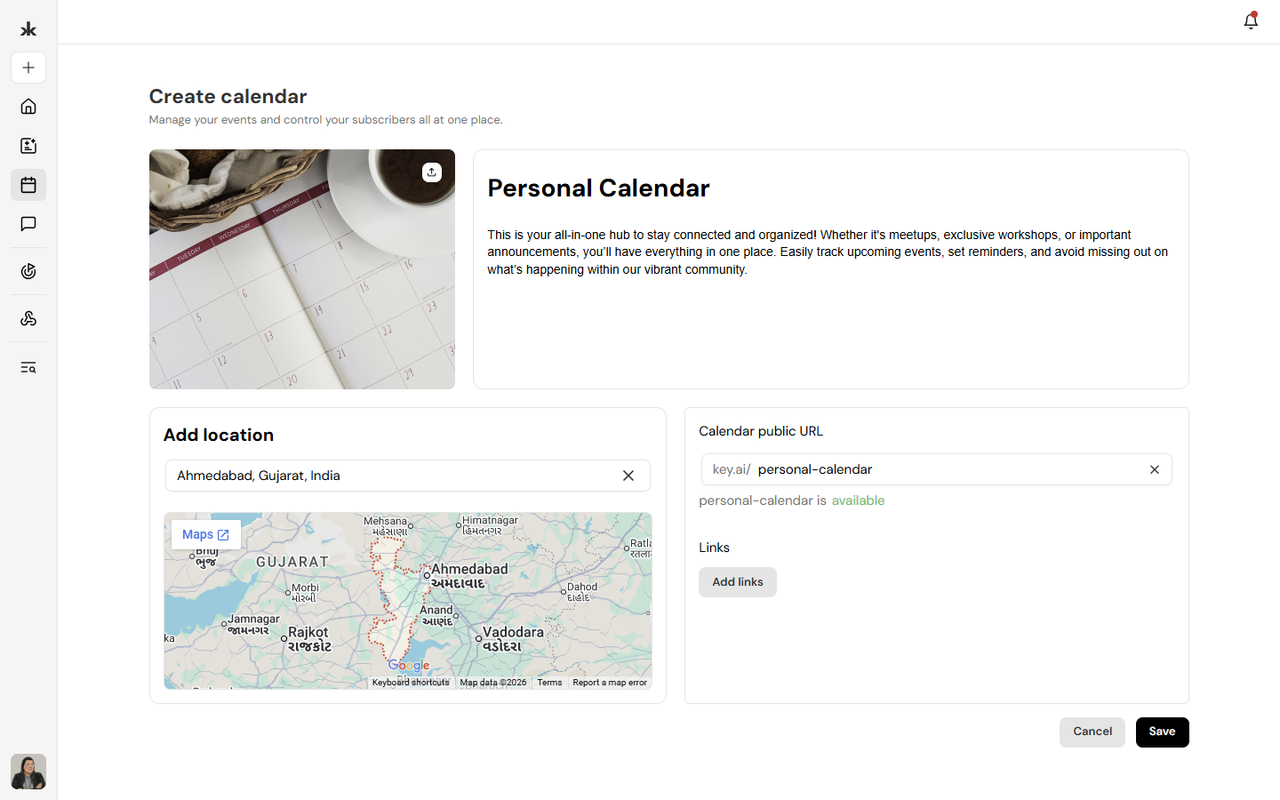
To create a calendar:
- Open the Calendars section.
- Click Create.
- Add the calendar details.
- Add a cover image.
- Save the calendar.
After creating a calendar, you can manage its events and calendar settings.
View a Calendar
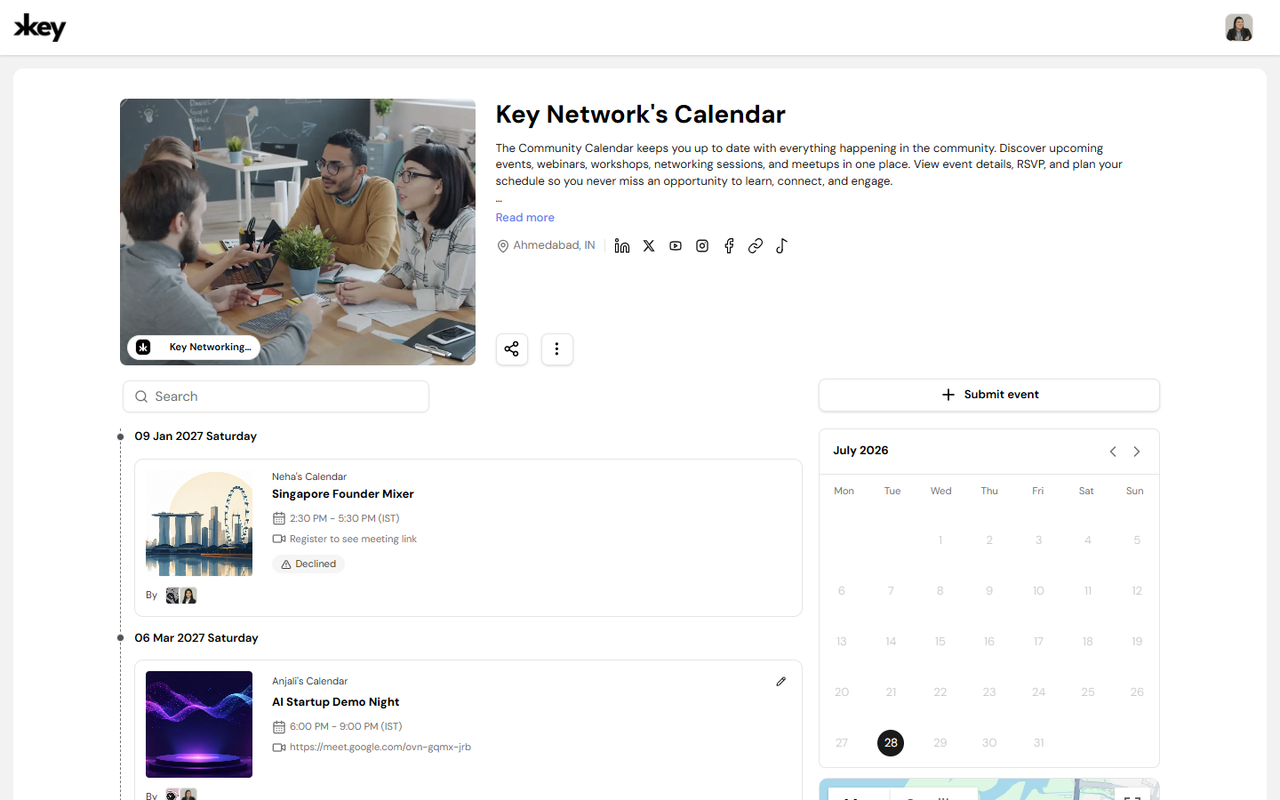
When you open a calendar, you can view the events associated with it.
The calendar provides:
- A list of upcoming events.
- A calendar view for browsing events by date.
- Event details.
- Event locations, where available.
- Options to navigate between dates.
You can select an event to open its event page and view additional information.
Submit an Event to a Calendar
Depending on your access to the calendar, you may be able to submit an event.
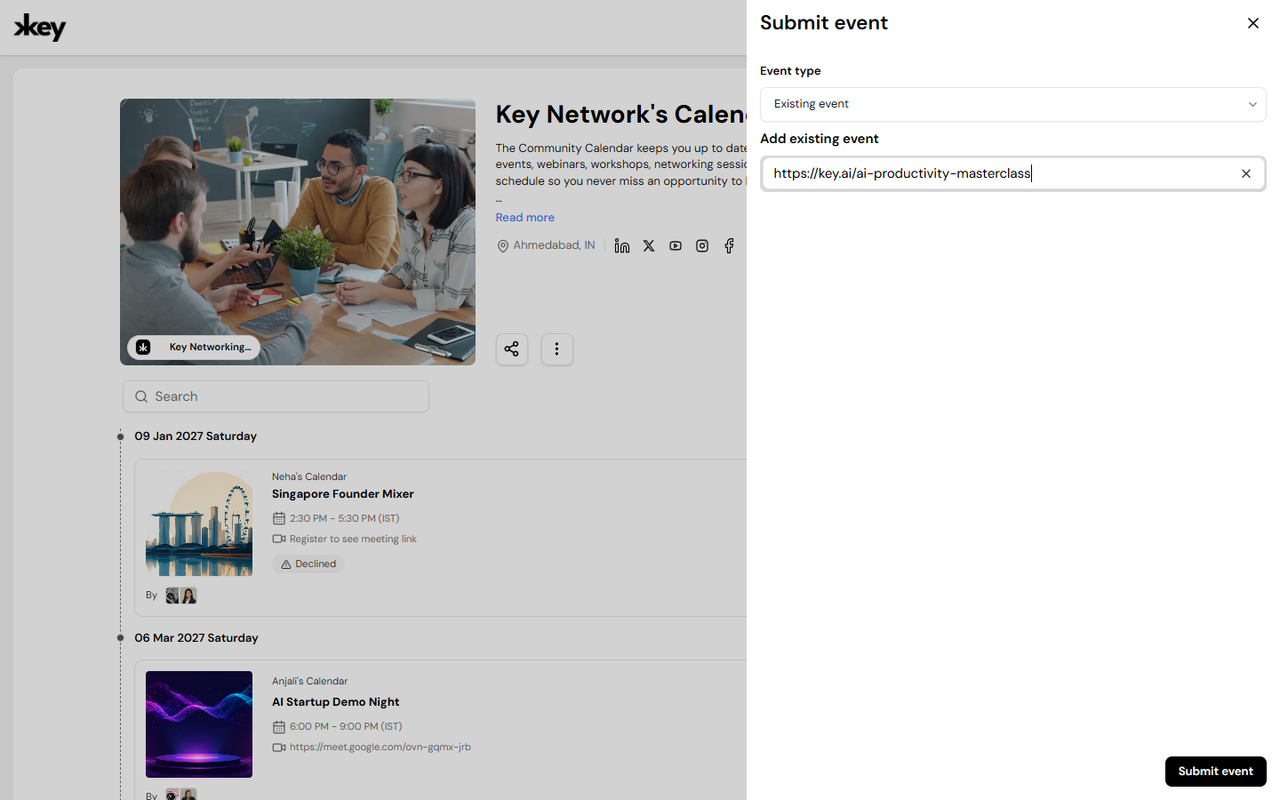
To submit an event:
- Open the calendar.
- Click Submit Event.
- Select the type of event you want to submit.
- Enter the required event details.
- Submit the event for review.
Available submission options include:
- External Event - Submit an event hosted outside Key AI.
- Existing Event - Add an event that already exists on Key AI.
- New Event - Create a new event.
Event Approval
If an event is submitted by someone who is not a Calendar Admin, the event may require approval before it is added to the calendar. Calendar Admins can review submitted events and approve them for inclusion in the calendar.
Subscribe to a Calendar
You can subscribe to a calendar to follow the events associated with it. Subscribing to a calendar helps you keep track of events added to that calendar.
Calendar Admins
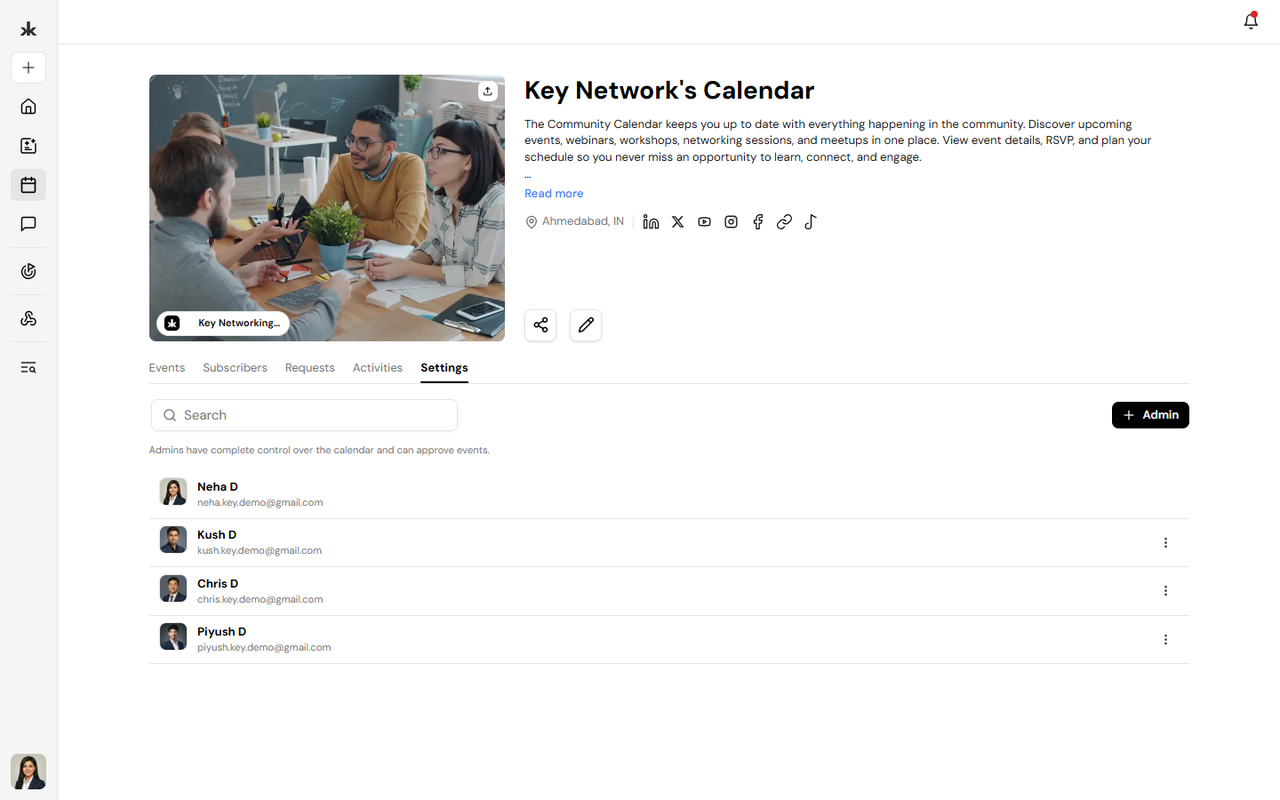
Calendar Admins help manage a calendar and its events.
Depending on their access, Calendar Admins can:
- Manage calendar settings.
- Review submitted events.
- Approve events.
- Add events to the calendar.
- Manage calendar administrators and subscribers.
Community Admins and Calendar Admins
When a person is added as a Community Admin, they are automatically added as a Calendar Admin for the community's calendar. If they are later removed as a Community Admin:
- They are removed from their Calendar Admin role.
- They may continue to remain subscribed to the calendar.
Add a Calendar Admin
Calendar Admins can be added independently of community membership. This means that someone can be added as a Calendar Admin even if they are not a member of the community. This allows calendar management responsibilities to be assigned separately from community membership.
Manage Calendar Settings
Calendar Admins can manage the calendar from its settings.
Depending on their access, settings may include:
- Calendar information.
- Calendar branding or cover image.
- Calendar administrators.
- Calendar members or subscribers.
- Calendar event management.
Calendar Events
Events displayed in a calendar can be accessed from the calendar view or event list.
You can:
- Browse upcoming events.
- View events by date.
- Open an event to view its details.
- Register for events, where registration is available.
An event page may include information such as:
- Event date and time.
- Location.
- Event description.
- Registration information.
- Tickets.
- Pulse features.
- Q&A.
- Reminders.
Frequently Asked Questions
Can anyone create a calendar?
Yes. Anyone on Key AI can create a calendar. No special permissions are required.
Can anyone submit an event to a calendar?
Event submission and approval depend on the user's access to the calendar. Events submitted by users who are not Calendar Admins may require approval before being added to the calendar.
Can a Calendar Admin be someone who is not part of the community?
Yes. A person can be added as a Calendar Admin even if they are not a member of the community.
Are Community Admins automatically Calendar Admins?
Yes. When someone is added as a Community Admin, they are automatically added as a Calendar Admin for the community's calendar.
What happens if someone is removed as a Community Admin?
They lose their Calendar Admin permissions but may continue to remain subscribed to the calendar.
Can I subscribe to a calendar?
Yes, where subscription is available. Subscribing allows you to follow the events associated with the calendar.
Does subscribing to a calendar sync all Key AI events?
No. A calendar subscription is specific to the events associated with that calendar. It does not automatically sync every event or activity across Key AI.
What types of events can be submitted to a calendar?
Depending on the available options, you can submit:
- An external event.
- An existing Key AI event.
- A new event.
- Submit Event Options
- External Event Submission
- Existing Event Submission
- New Event Submission
- Calendar Admin Settings
- Event Approval
- Calendar Settings