Overview
The Roles & Permissions page allows Community Admins and users with the appropriate permissions to control what members can access and manage within a community. Key AI uses role-based access control (RBAC), where permissions are assigned to roles rather than individual members. Members automatically inherit the permissions associated with their assigned role. In addition to the default roles, Community Admins can create custom roles to match the responsibilities of different members within the community.
Access Roles & Permissions
The Roles & Permissions page is available only to Community Admins and users assigned a custom role with permission to manage community roles.
To access Roles & Permissions:
- Open the community you want to manage.
- Navigate to Community Settings.
- Select Roles & Permissions.
If you don't see this option, your current role doesn't include permission to manage community roles.
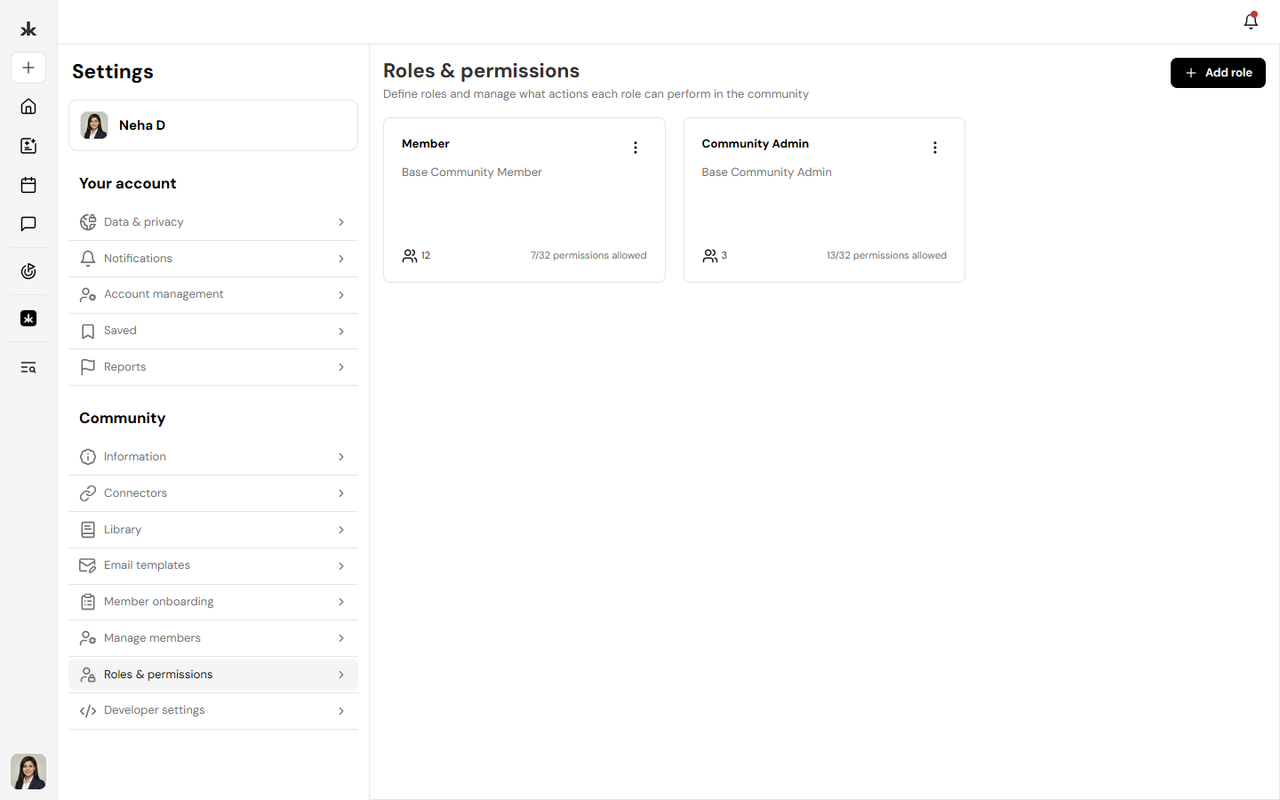
Default Roles
Each community includes default roles that provide a foundation for managing member access.
Default roles include:
- Member - Standard community access.
- Admin - Full community administration privileges.
Community Admins can also create additional custom roles to meet their community's needs.
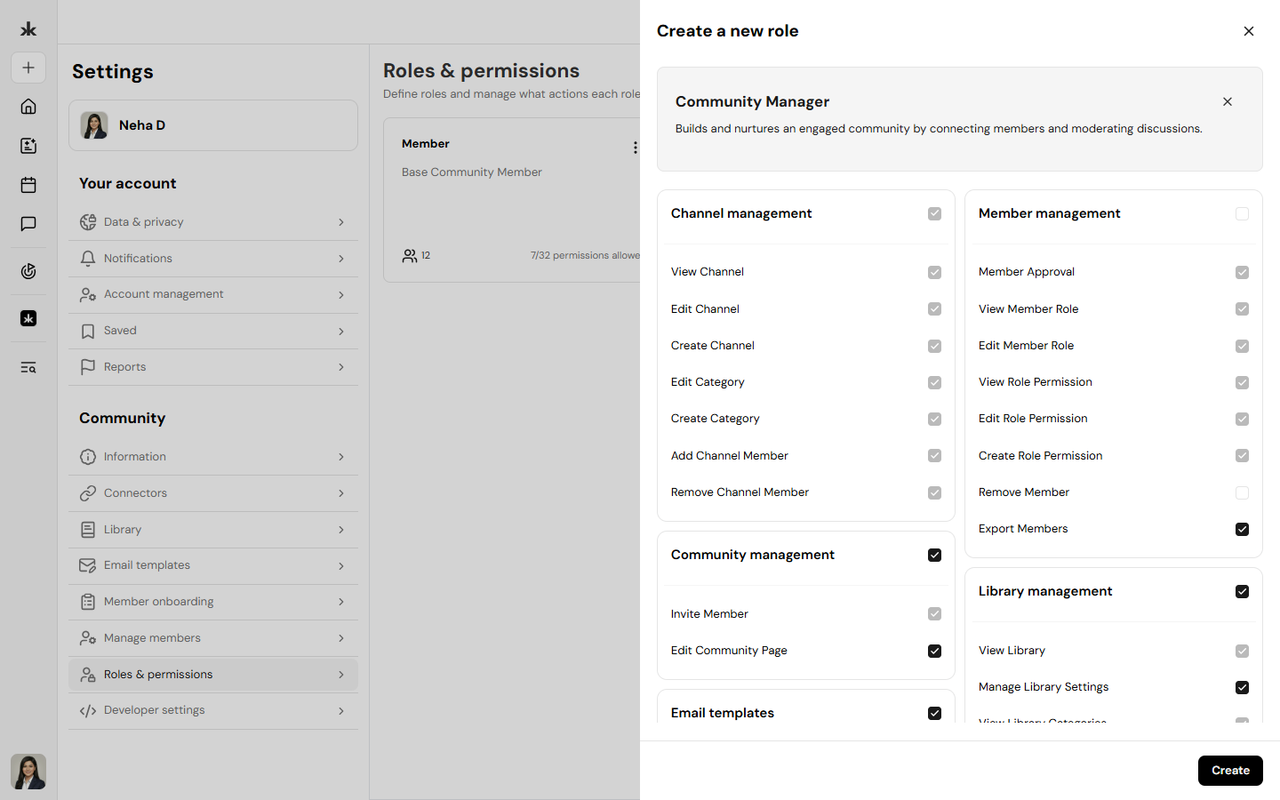
Create a Custom Role
Community Admins can create custom roles with permissions tailored to specific responsibilities.
To create a custom role:
- Open Roles & Permissions.
- Click Add Role.
- Enter a Role Title.
- (Optional) Add a description.
- Select the permissions you want to grant.
- Click Create.
The new role can then be assigned to community members.
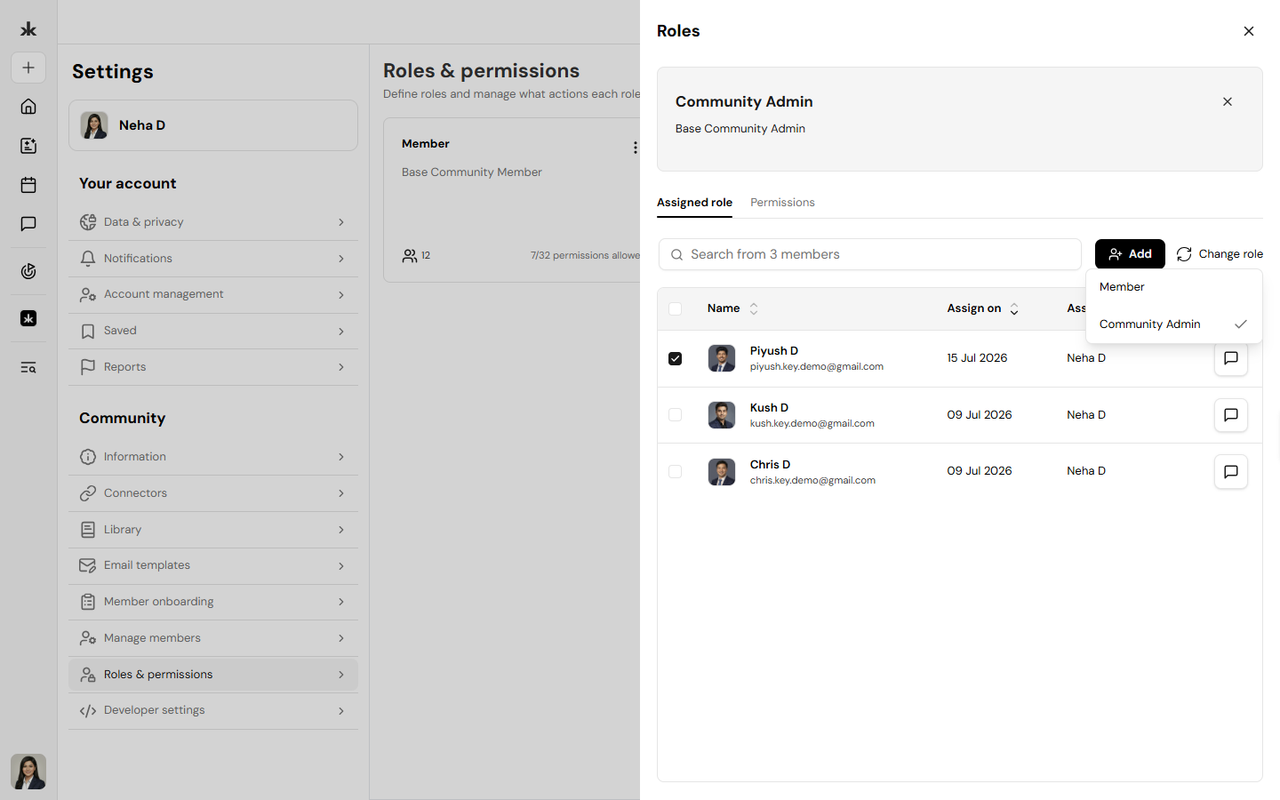
Assign Roles to Members
Roles determine what members can access and manage within a community.
To assign or change a member's role:
- Open Manage Members.
- Locate the member.
- Select their current role.
- Choose the new role.
- Changes are saved automatically.
The updated permissions take effect immediately.
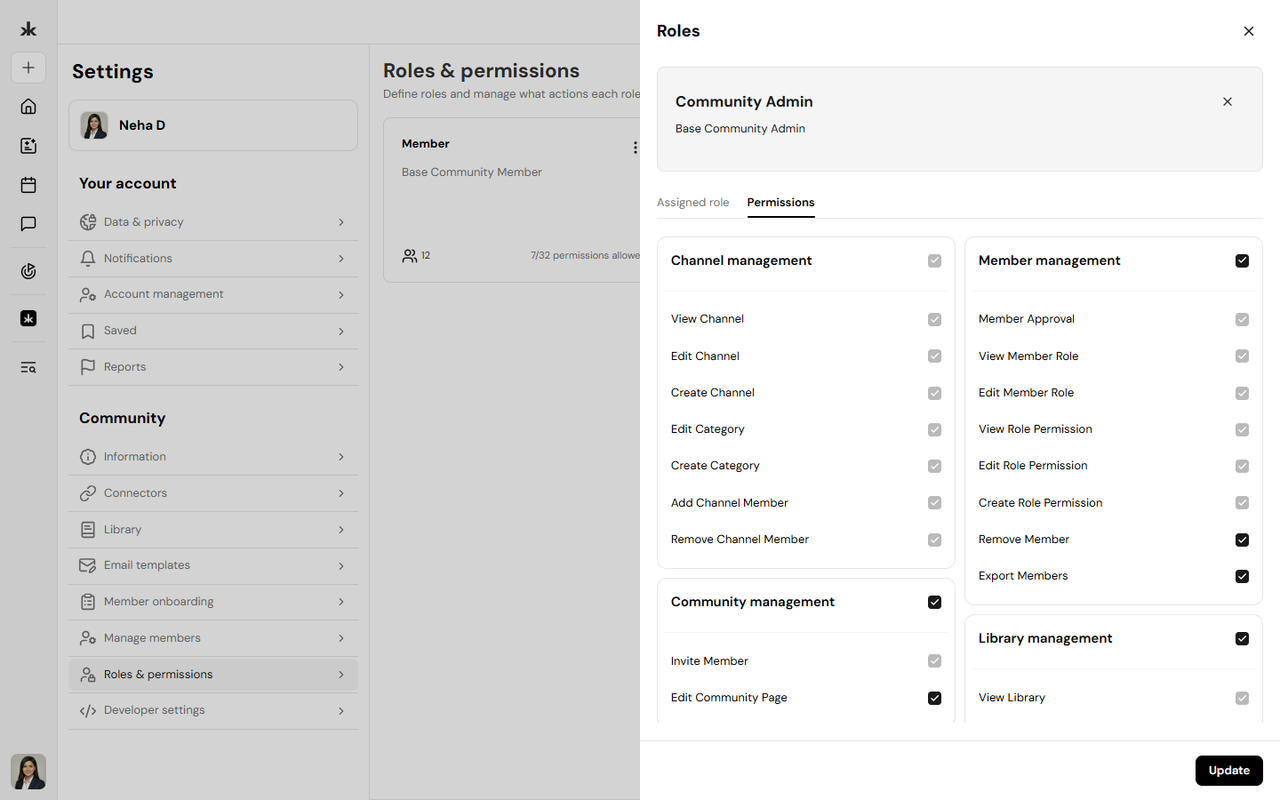
Manage Permissions
Permissions control which actions members can perform within the community. Depending on your community's configuration, permission categories may include:
- Channel Management
- Member Management
- Community Settings
- Email Templates
- Community Library
- Registration Questions
- Connectors
- Other administrative features
Community Admins can enable only the permissions required for a particular role, ensuring members have access to the features they need while maintaining community security.
Update or Remove Roles
Community Admins can update custom roles as community requirements change. When a role is updated, the changes automatically apply to all members assigned to that role.
Best Practices
To effectively manage roles and permissions:
- Follow the principle of least privilege by granting only the permissions members require.
- Create custom roles for different responsibilities instead of assigning administrative access to everyone.
- Review roles and permissions regularly.
- Remove or update unused custom roles as your community evolves.
- Periodically verify that members have the appropriate level of access.
Frequently Asked Questions
Who can create custom roles?
Only Community Admins and users assigned a custom role with permission to manage community roles can create custom roles.
Can I change a member's role later?
Yes. Member roles can be updated at any time through the Manage Members page.
Are permissions assigned to individual members?
No. Permissions are assigned to roles. Members inherit the permissions associated with their assigned role.
What happens when I update a role?
Any changes made to a role are automatically applied to all members assigned to that role.