Overview
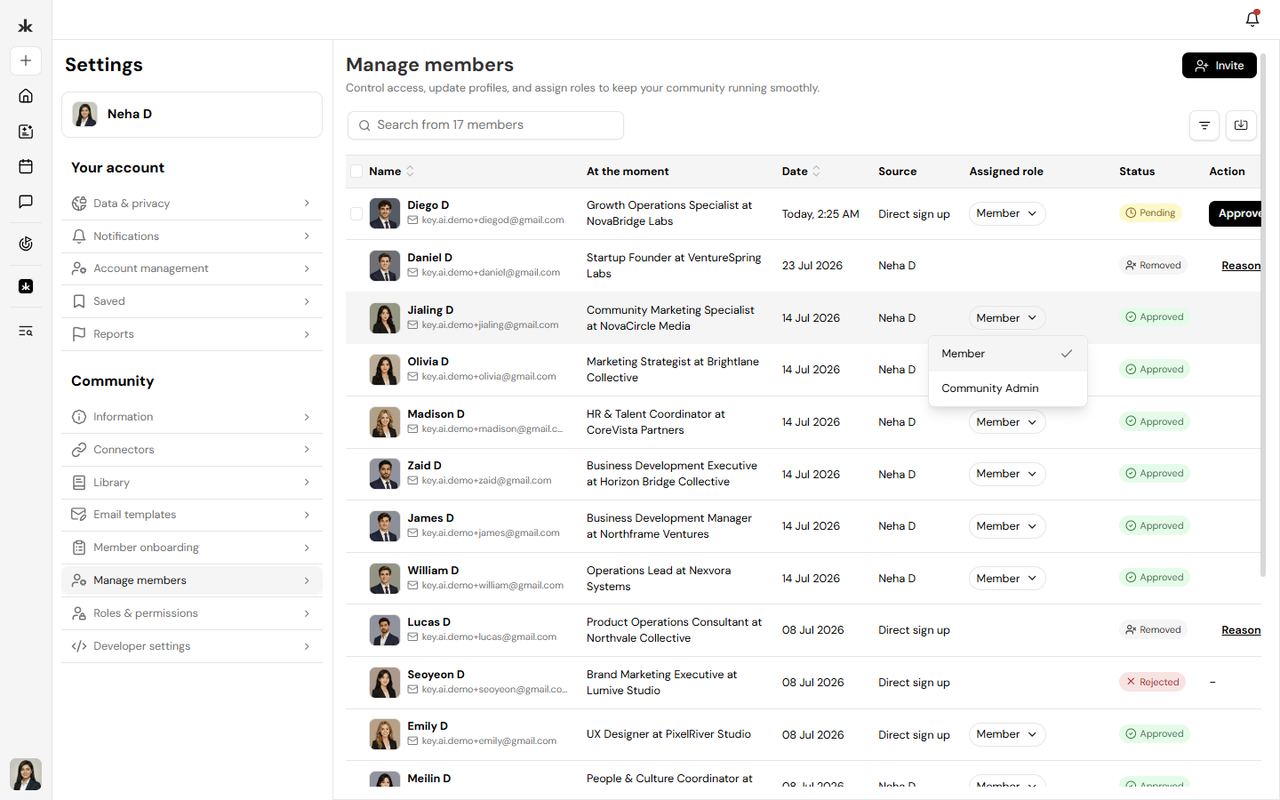
The Manage Members page allows Community Admins and users assigned a custom role with Member Management permissions to view, organize, and manage community membership from a single location. From this page, authorized users can invite new members, approve membership requests, assign roles, update member access, and remove members when needed.
Access Manage Members
The Manage Members page is only available to Community Admins and users who have been assigned a custom role with Member Management permissions.
To access Manage Members:
- Open the community you want to manage.
- Open the Community Menu.
- Select Manage Members.
If you don't see the Manage Members option, your current role doesn't include permission to manage community members.
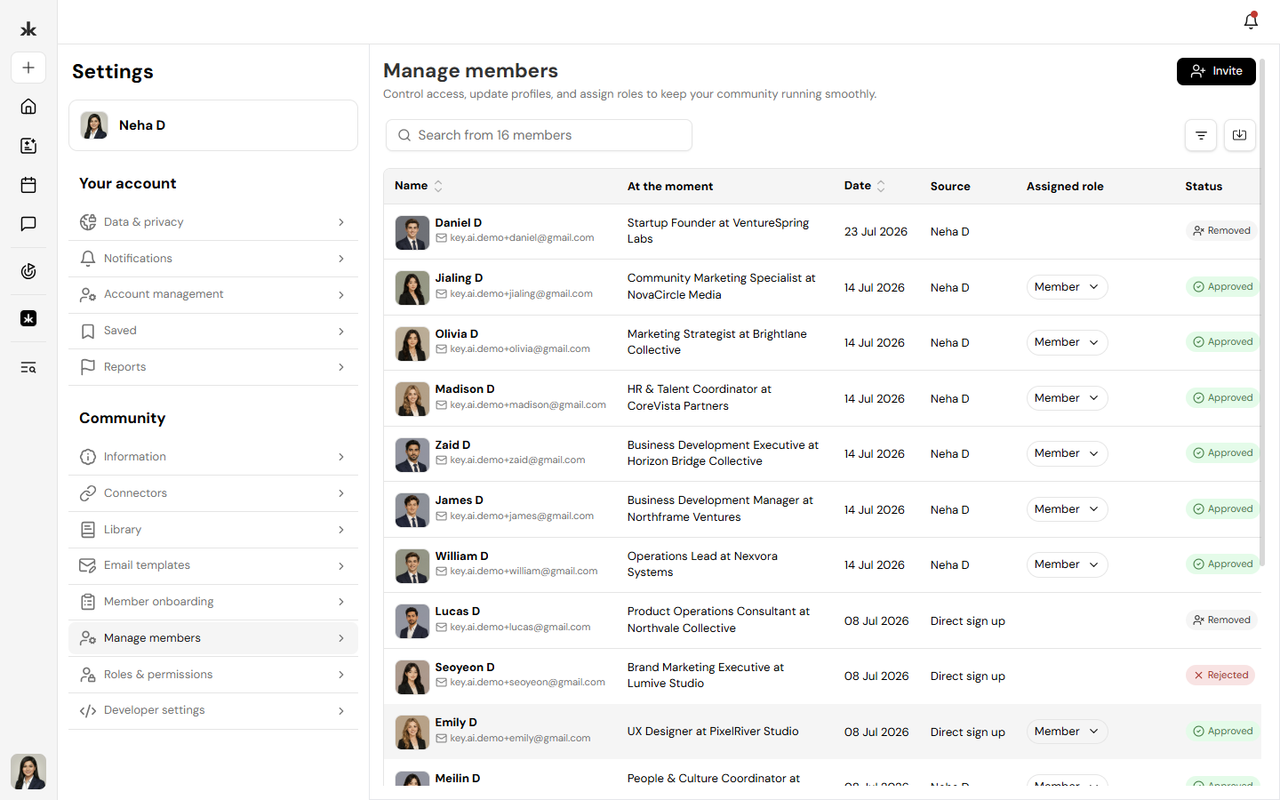
View Community Members
The Manage Members page provides an overview of all members within the community.
For each member, you can view:
- Name
- Email address
- Join date
- Assigned role
- Membership status
- At the moment
- Answers to community registration questions.
This information helps administrators quickly understand who belongs to the community and their current access level.
Search, Sort, and Filter Members
To quickly locate members, you can:
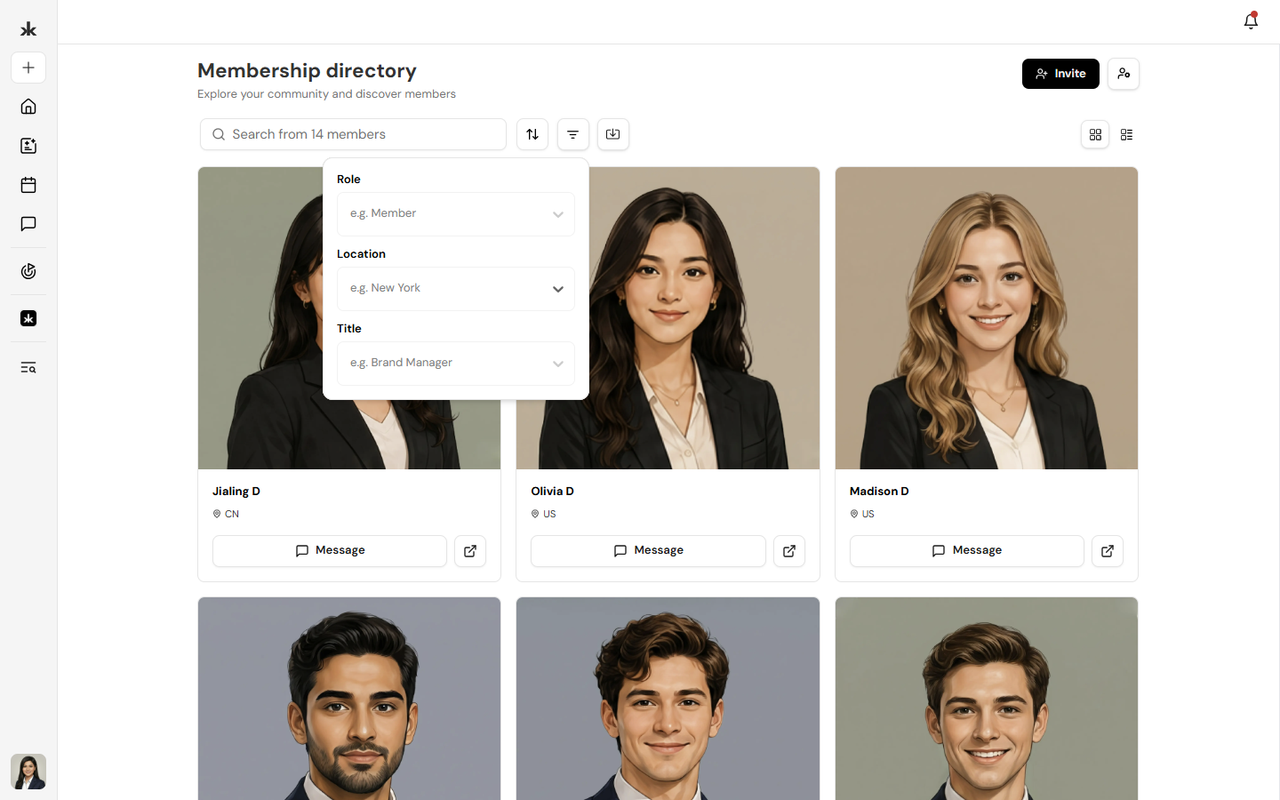
- Search by name or email address.
- Sort the member list.
- Apply available filters to narrow your results.
These tools make it easier to manage large communities efficiently.
Member Tags
Admins can use tags to organize and identify members within a community. Tags can be used to highlight specific groups or characteristics, such as VIP, Speaker, or Investor.
Admins can:
- Add up to 10 tags per member
- Apply tags to multiple members at once
- Remove tags from multiple members at once
- Use tags when searching and filtering the member list
Member tags are visible only to admins. Tags are automatically removed when a member leaves the community or their account is deleted.
Filter Members by Tags
Admins can use tags to quickly find specific members in the member list. The member list supports multiple filters, allowing admins to combine:
- Status
- Tags
You can select multiple values across these filters to narrow down the member list and find the members you're looking for more easily.
Invite Members
Authorized users can invite new members directly from the Manage Members page.
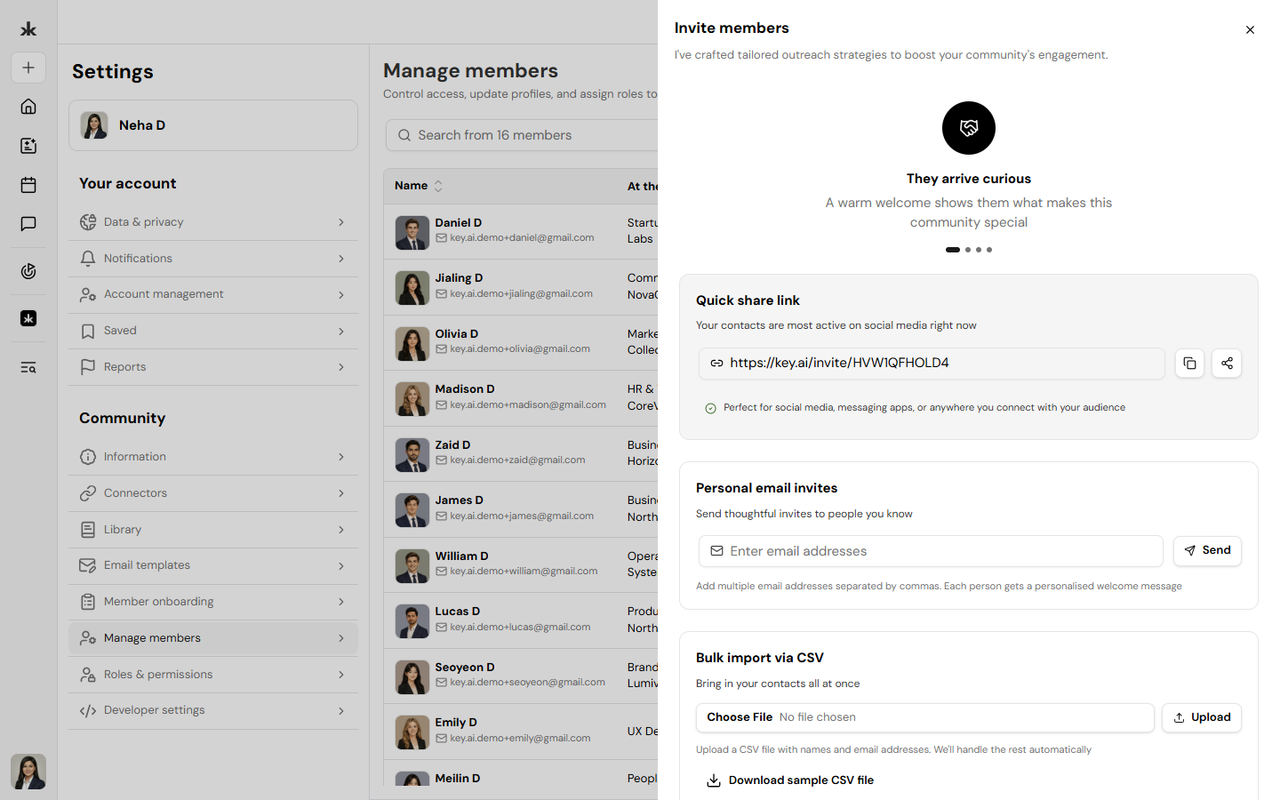
To invite a member:
- Click Invite.
- Enter the member's email address.
- Send the invitation.
Invited users will receive an email to join the community.
Approve Membership Requests
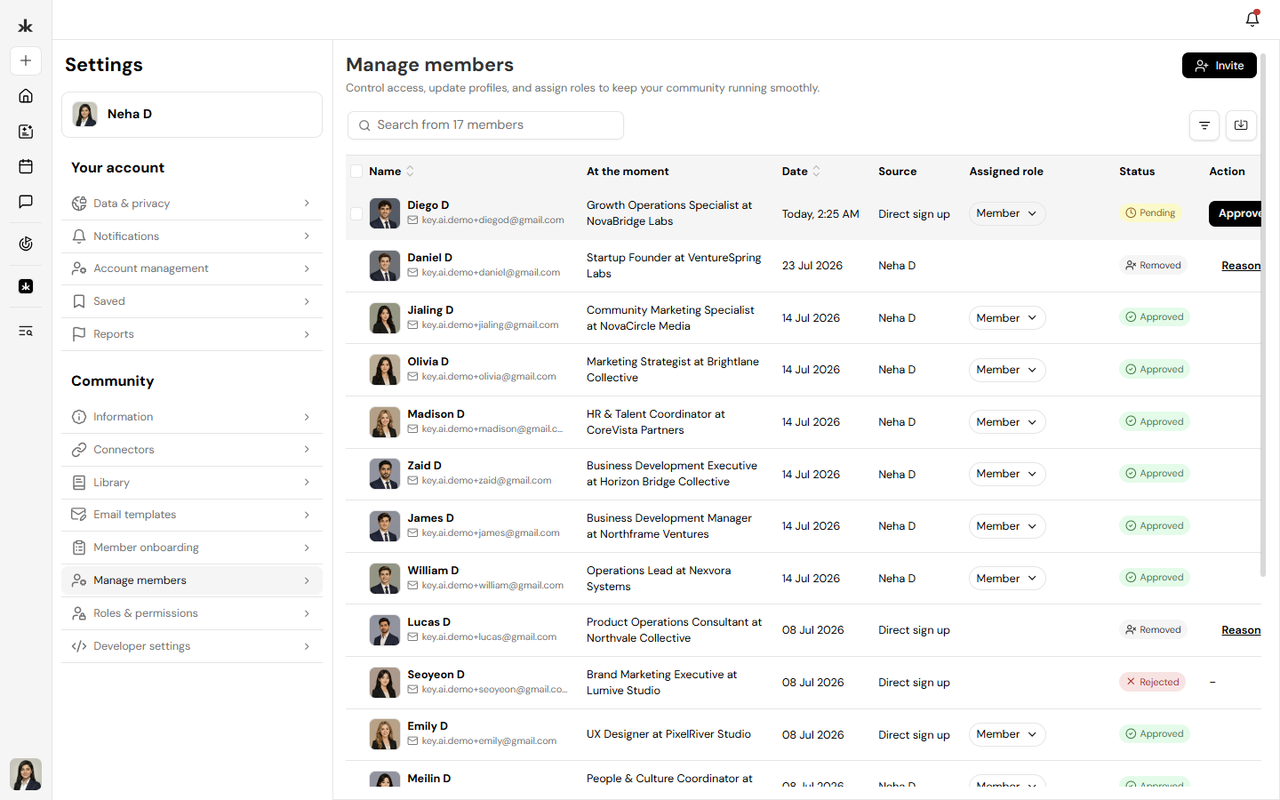
If your community requires approval before members can join, pending requests appear in the Manage Members page.
Authorized users can:
- Review pending requests.
- Approve membership requests.
- Decline membership requests.
Once approved, members receive access based on their assigned role.
Refresh the Members List
The Manage Members page automatically detects when changes are made in the background, such as when new members join or another admin approves, removes, or updates a member. Instead of refreshing automatically, Key AI lets you choose when to load those updates so you can continue reviewing your member list without interruption. When new updates are available, a Refresh to see updates button appears in the toolbar with an indicator dot.
Refresh the member list
- Open your community.
- Go to Settings > Manage Members.
- When the Refresh to see updates button appears, select it.
- The member list reloads with the latest updates while keeping your current search,
filters, and sorting. How it works
The refresh button only appears when new member updates are available. This prevents the member list from changing unexpectedly while you're reviewing members or performing actions, giving you full control over when the list is refreshed.
Export Members
Community administrators can export the community member list as a CSV file for reporting, record keeping, or offline analysis. Exports are generated in the background and delivered by email, allowing even large member lists to be processed without timing out.
Export your member list
- Open your community.
- Go to Settings > Manage Members.
- Select Export.
- A confirmation message appears indicating that your export is being prepared.
- Once complete, the CSV file is sent to your registered email address.
Export contents
The exported CSV includes:
- First name
- Last name
- Email address
- Phone number
- Location
- Member status
- Referral source
- Join date
- Responses to your community's membership questions
How exports are delivered: Exports are sent as an email attachment.
Permissions
Only users with the Export Members permission can export member data.
By default, this permission is available to:
- Creators
- Admins
You can also assign the permission to custom roles under Settings > Roles & Permissions without granting full administrative access.
Manage Member Roles
Community Admins and users with the appropriate permissions can update a member's role at any time. Changing a member's role automatically updates the permissions available to that member within the community. For more information, see Roles & Permissions.
Remove Members
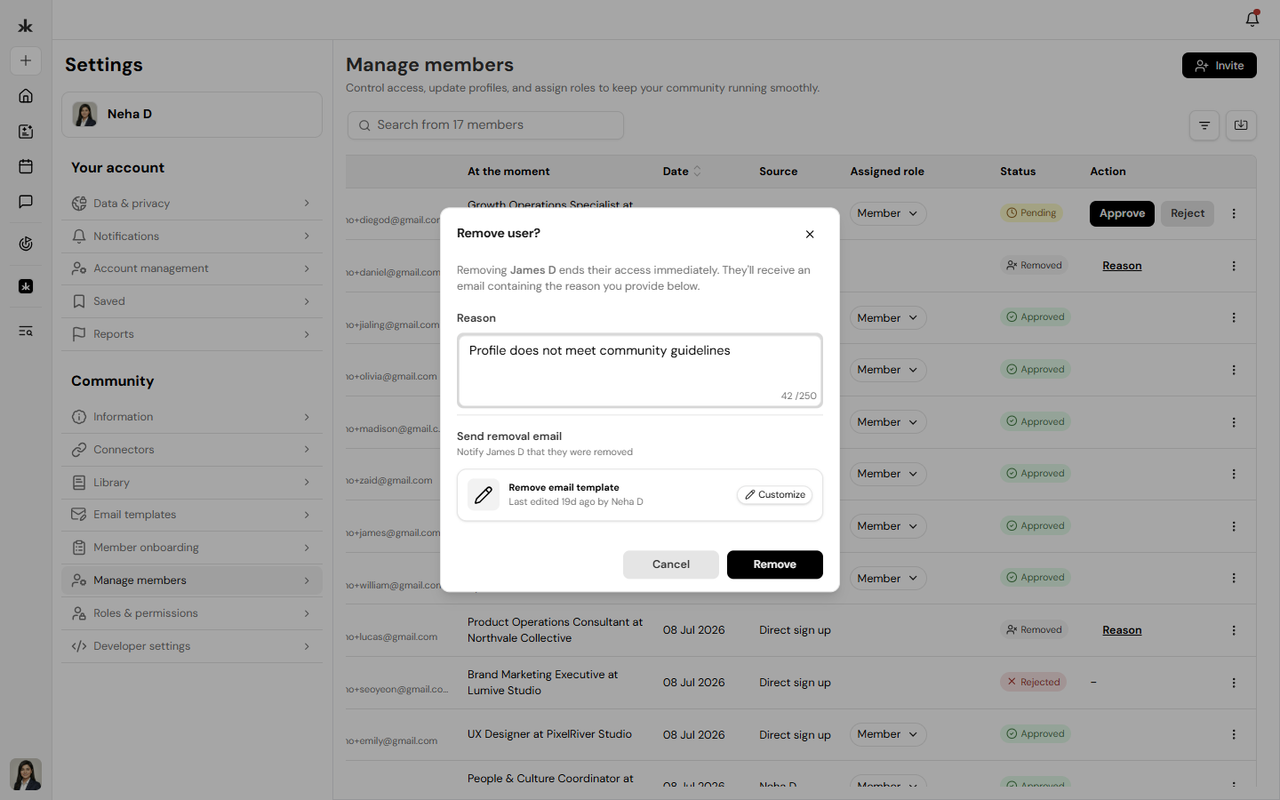
Authorized users can remove members who no longer require access to the community. Removing a member revokes their access to community resources and other community content.
Best Practices
To effectively manage your community:
- Assign roles based on each member's responsibilities.
- Regularly review your community membership.
- Remove members who no longer require access.
- Use custom roles to grant only the permissions members need.
- Review pending membership requests regularly to keep your community active and secure.
Frequently Asked Questions
Who can access the Manage Members page?
Only Community Admins and users assigned a custom role with Member Management permissions can access the Manage Members page. Standard community members cannot view or manage community membership.
Can I change a member's role after they join?
Yes. Community Admins and authorized users can update a member's role at any time.
Can I remove a member from the community?
Yes. Community Admins and authorized users can remove members whenever necessary.
Does removing a member delete their Key AI account?
No. Removing a member only removes their access to that specific community. Their Key AI account remains active.