Overview
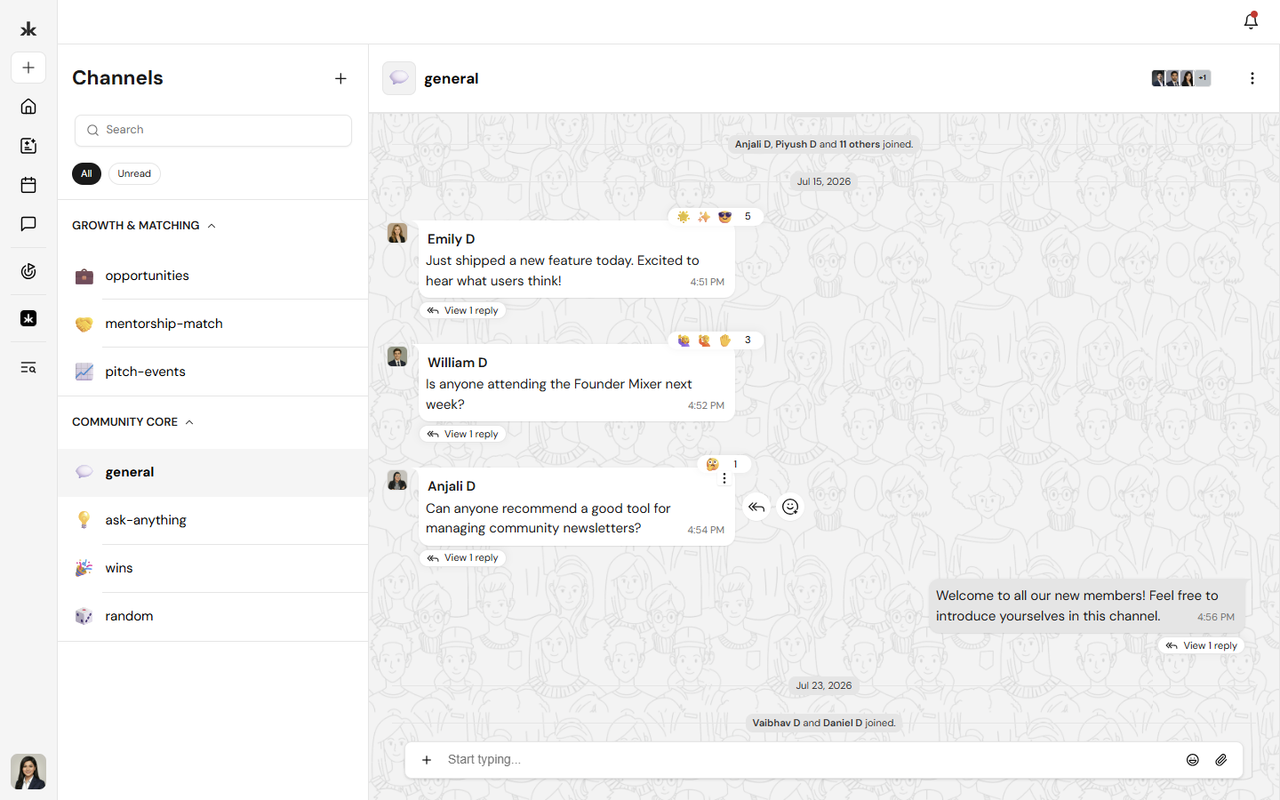
Channels are dedicated spaces within a community where members can collaborate, share updates, ask questions, and participate in discussions. They help organize conversations by topic, making it easier for members to find relevant information and engage with others. Channels can be grouped into categories to keep discussions organized. Community Admins and users with the appropriate permissions can create and manage channels within a community.
Access Channels
To access the Channels page:
- Open your community.
- Select Channels from the Community Menu.
- Browse or search for a channel.
- Select a channel to view and participate in the conversation.
The channels available to you depend on your role and permissions within the community.
Search and Filter Channels
The Channels page provides tools to help you quickly find conversations.
You can:
- Search for channels by name.
- View All channels.
- Filter to Unread channels to quickly catch up on new activity.
Organize Channels with Categories
Categories help organize related channels within a community, making it easier for members to navigate discussions. Community Admins and users with the appropriate permissions can create and manage categories based on the needs of the community.
Channel Visibility
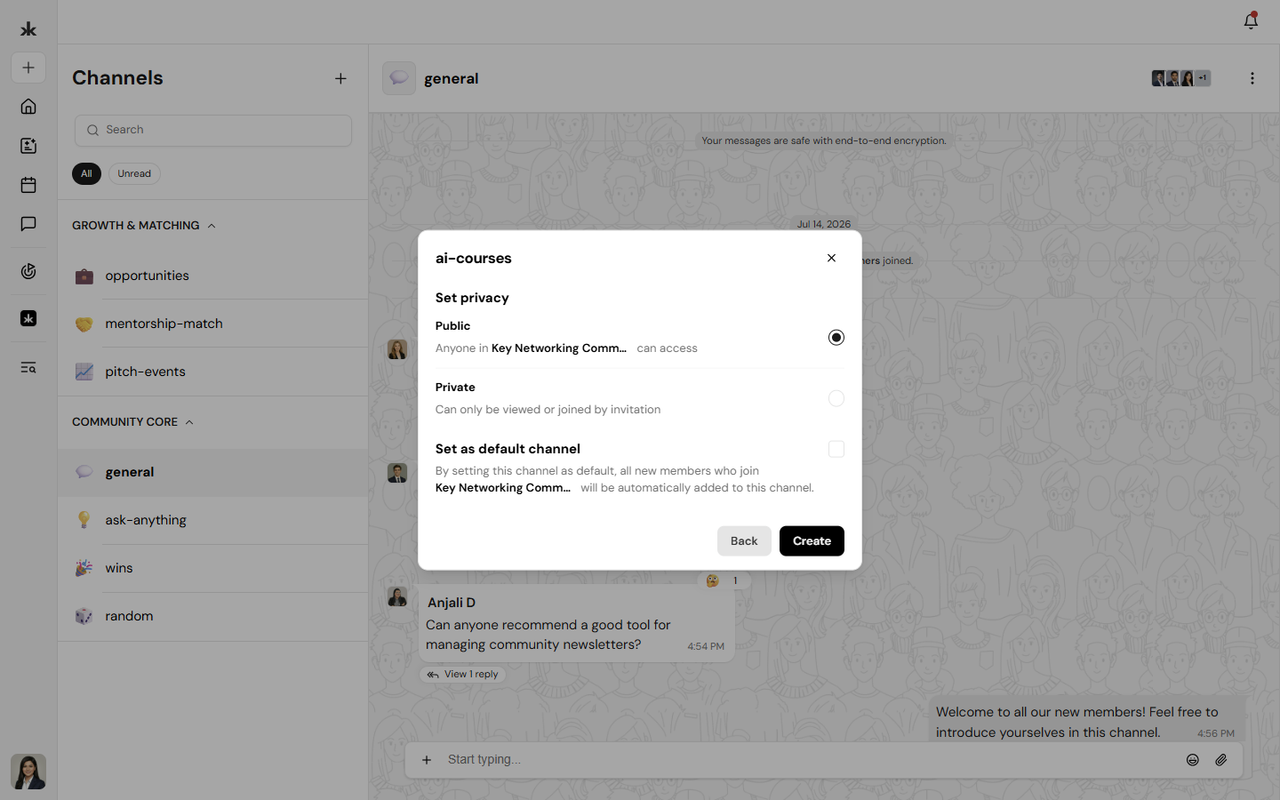
Each channel can be configured as either Public or Private.
Public Channels
Public channels are accessible to all members of the community. Any community member can view and participate in discussions within these channels.
Private Channels
Private channels are only accessible to members who have been invited or granted access. These channels are ideal for private discussions, leadership teams, or project-specific collaboration.
Default Channels
A channel can be designated as the Default Channel.
When a channel is marked as the default:
- Every new member who joins the community is automatically added to that channel.
- It ensures all members have immediate access to important announcements or general community discussions.
Community Admins can change the default channel at any time.
Create a Channel
Community Admins and users with the appropriate permissions can create new channels.
To create a channel:
- Open your community.
- Navigate to Channels.
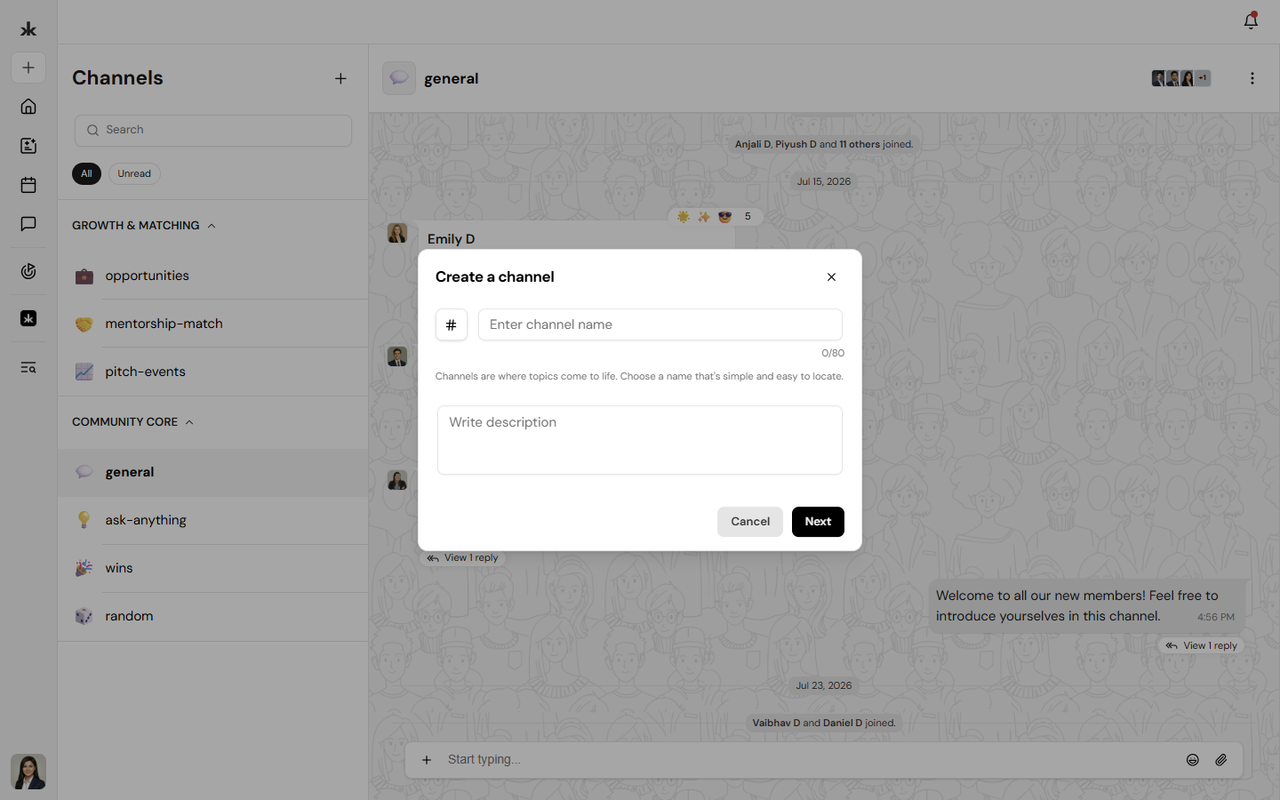
- Click the + (Add) icon.
- Select Create channel.
- Enter the channel details.
- Choose whether the channel should be Public or Private.
- Optionally mark the channel as the Default Channel.
- Click Save.
The channel will become available based on the visibility settings you selected.
Create a Category
Categories help organize channels into logical groups.
To create a category:
- Open your community.
- Navigate to Channels.
- Click the + (Add) icon.
- Select Create category.
- Enter a category name.
- Save your changes.
Once created, channels can be organized under the appropriate category.
Manage Channels
Depending on your permissions, you can:
- Create channels.
- Create categories.
- Edit channels.
- Edit categories.
- Add or remove channel members.
- Change a channel between Public and Private.
- Set or remove a Default Channel.
The actions available to you depend on your assigned community role and permissions.
Best Practices
- Organize channels into meaningful categories.
- Use clear and descriptive channel names.
- Create private channels only when discussions should be limited to specific members.
- Use a Default Channel for important community-wide announcements.
- Periodically review channels and categories to keep your community organized.
Frequently Asked Questions
Who can create channels?
Community Admins and users with the appropriate permissions can create new channels.
What is the difference between a Public and Private channel?
Public channels are accessible to all community members, while Private channels are only accessible to invited members.
What is a Default Channel?
A Default Channel automatically adds every new member who joins the community, ensuring they have immediate access to important community discussions and updates.
Can I organize channels into categories?
Yes. Community Admins and users with the appropriate permissions can create categories to group related channels, making navigation easier for members.
Can I search for channels?
Yes. Use the search bar on the Channels page to quickly locate a channel by name.
View Member Profiles
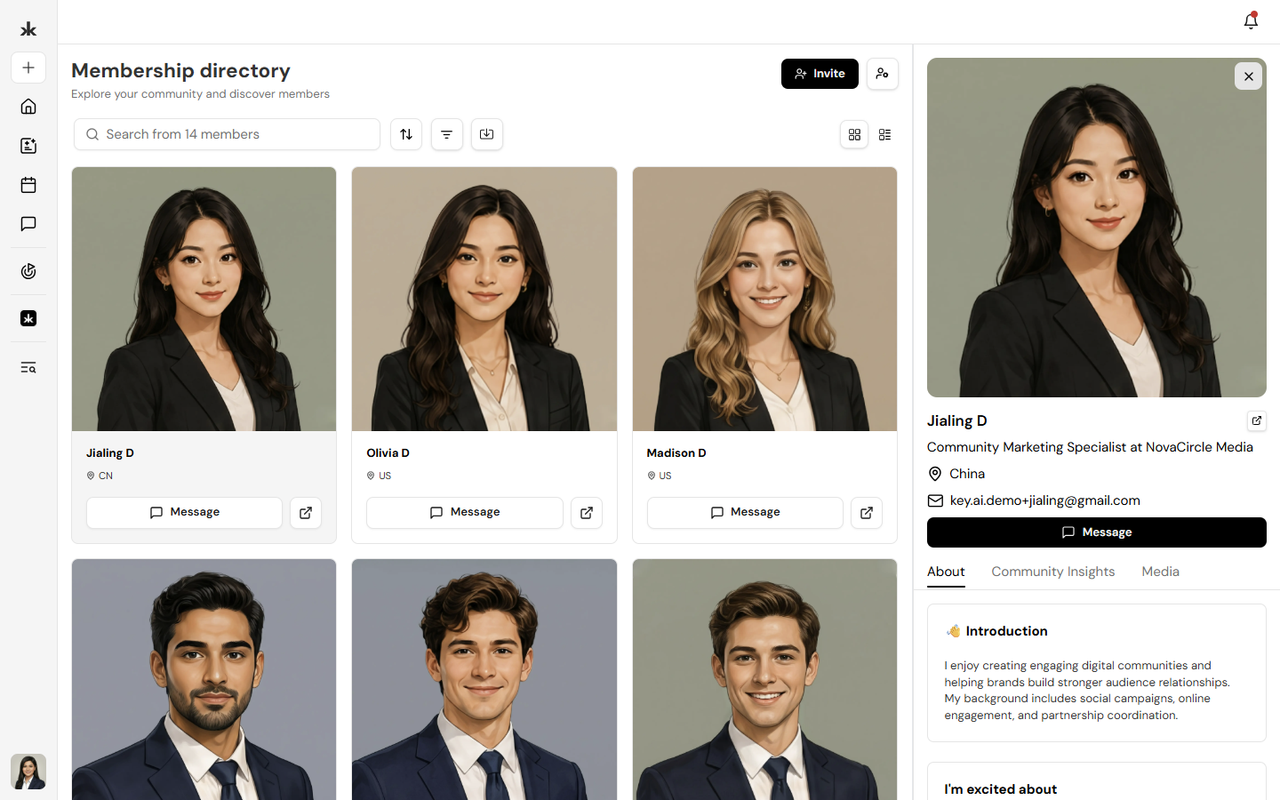
Select a member's profile card or the Open Profile icon to view additional information about them. Depending on the information they have shared, a profile may include:
- Profile photo
- Name
- Professional headline
- Location
- About section
- Work experience
- Education
- Skills and expertise
- Social and professional links
The information displayed varies based on what each member has chosen to include in their profile. From the member profile, you can also start a direct conversation using the Message option.