Depending on the notification type, Key AI can deliver notifications through:
- Push - Real-time alerts are sent to your device.
- Email - Notifications are sent to your registered email address.
The available notification channels may vary depending on the notification type.
Access Notifications
To view your notifications:
- Select the Notifications bell icon.
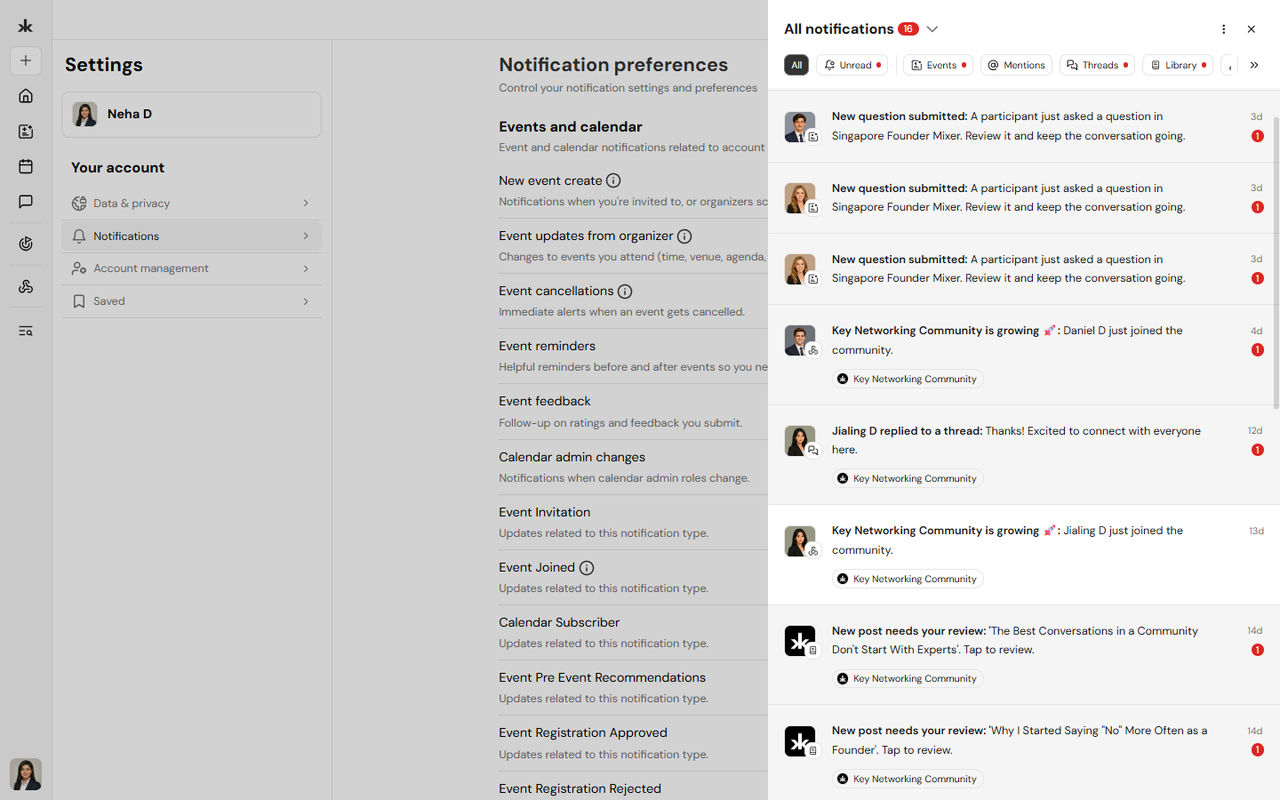
- The notification panel opens and displays your recent notifications.
You can switch between All notifications and notifications from a specific community.
Filter Notifications
You can filter notifications by category.
Available filters include:
- All - View all notifications.
- Unread - View notifications you have not yet read.
- Events - View event-related notifications.
- Mentions - View notifications where you were mentioned.
- Threads - View activity related to threads.
- Library - View Library-related notifications.
- System - View system announcements and account updates.
Manage Notifications
You can manage notifications directly from the notification panel.
Mark a Notification as Read or Unread
To change the read status of a notification:
- Open the notification's More options menu.
- Select Mark as read or Mark as unread.
Mark All Notifications as Read
To mark all unread notifications as read:
- Open the notification panel.
- Open the panel's options menu.
- Select Mark all as read.
Delete a Notification
To delete an individual notification:
- Open the notification's More options menu.
- Select Delete.
Notifications can be deleted individually. You cannot delete all notifications at once.
Push Notifications
Push notifications deliver real-time alerts to your device. Push notifications are disabled until you enable them. You can enable push notifications when Key AI requests permission or from Notification preferences using the Enable browser notifications option. If you do not grant permission, push notifications remain disabled until you enable them in your browser or device settings.
Email Notifications
Some notifications can also be sent to your registered email address. You can manage email notifications from Notification preferences where available. You can also unsubscribe from a notification category using the unsubscribe link included in the relevant email.
Notification Preferences
To manage your notification preferences:
- Open the notification panel's options menu and select Notification settings, or go to Settings → Notifications.
- Select the notification type you want to manage.
- Choose the available notification channels.
Available channels may include:
- In-app - Notifications appear inside Key AI.
- Email - Notifications are sent to your registered email address.
- Push - Notifications are sent to your device.
Detailed notification controls are currently available for event and calendar notifications, including new events, event updates, cancellations, reminders, feedback, and calendar changes. Some notifications related to essential account, security, or content activity may be required and cannot be disabled.
Community Digest Emails
Community Digest Emails let community administrators receive a summary of membership activity instead of separate email notifications for every join request. Rather than sending individual emails, Key AI combines pending approvals and recently joined members into a single digest based on the schedule you choose.
What's Included
Each digest includes membership activity for your community, including:
- Members waiting for approval
- A preview of pending member requests
- Recently joined members
If you manage multiple communities, each community has its own digest settings.
Choose Your Digest Frequency
You can decide how often you'd like to receive digest emails for each community.
- Open your community.
- Go to Settings > Notifications.
- Under the Community section, locate Digest.
- Choose one of the available options:
- Off - Don't receive community digest emails.
- Daily - Receive one digest email each day.
- Weekly - Receive one digest email each week.
- Monthly - Receive one digest email each month.
By default, the digest frequency is set to Daily.
How Digest Emails Work
When Community Digest Emails are enabled, they replace individual Pending Approval email notifications for that community. If you turn the digest Off, Key AI resumes sending individual email notifications whenever new membership requests require approval.
Who Can Receive Community Digests? Community Digest Emails are available to users who can approve membership requests, including:
- Community Creators
- Community Admins
Members without approval permissions do not receive community digest emails.
Best Practices
Choose a digest frequency that matches the activity level of your community:
- Daily works well for active communities with frequent join requests.
- Weekly is suitable for communities with moderate activity.
- Monthly provides a high-level summary for less active communities.
- Turn the digest Off if you prefer to receive individual approval emails.
Kai Smart Notifications
Kai proactively recommends people, opportunities, and content based on your goals, profile, and activity. These personalized recommendations are delivered through in-app notifications and push notifications to help you discover relevant connections and opportunities. Depending on your activity and preferences, you may receive the following notification types.
New Match
Kai has found a new person, opportunity, or resource that closely matches your interests or goals.
Weekly Picks
Receive a weekly summary of the people, opportunities, and Library content Kai recommends based on your activity.
Match Reminder
If you haven't acted on a recommended match or a saved item, Kai may send a reminder so you don't miss the opportunity.
Goal Follow-up
When something becomes available that matches a goal you've shared with Kai, you'll receive a notification letting you know about the new match.
People to Meet at an Event
Before an event you're attending, Kai may recommend attendees who are relevant to your interests or goals, helping you make valuable connections during the event.
Tell Kai What You're Working On
If Kai needs more information to personalize recommendations, you'll receive a prompt to share your current goals or areas of focus. Complete Your Profile
Kai may encourage you to complete your profile so it can provide more accurate recommendations and matches.
Smart Notifications for Community Library
Community administrators can enable Kai-powered notifications for Library content from their community settings.
Available options include:
- Smart notify on new posts - Kai recommends newly published Library content to
members who are most likely to find it relevant.
- Revive quiet threads - Kai encourages engagement by notifying relevant members
when Library discussions become inactive. These settings help deliver relevant content without sending notifications to every community member.
Community Membership Notifications 04/08/26 Key AI keeps you informed throughout the community joining process with notifications delivered in-app, through push notifications, and, where applicable, by email.
Community Invitation
You'll receive a notification when another member invites you to join a community. An invitation email is also sent to your registered email address.
Join Request Pending
If a community requires approval, you'll be notified after submitting your join request. You'll also receive an email confirming that your request is awaiting review.
Join Request Not Approved
If your request to join a community isn't approved, you'll receive a notification informing you of the decision. If the community administrator provides a reason, it will be included in the accompanying email.
Membership Requests for Administrators
Community administrators receive in-app notifications whenever new membership requests require approval. Requests are grouped by community, making them easier to review and manage.